Adding Active Directory nodes
Add the Windows Active Directory nodes that will be used for certificate enrollment.
To add an Active Directory node:
-
Follow Accessing your instances to log in to the PKIaaS user interface using an account with one of the following roles:
-
Click Certificate Authorities in the sidebar and select the Enrollment Protocols (Legacy) tab.
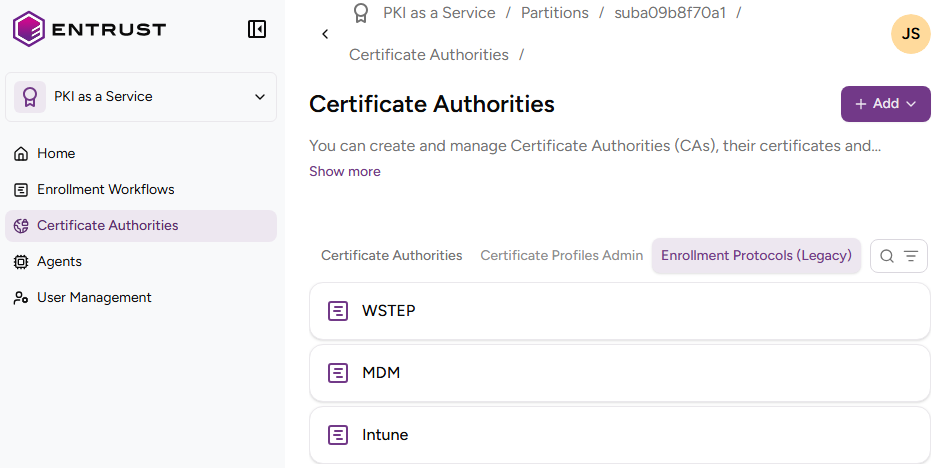 Future releases will move all functionality from this legacy tab to the Enrollment Workflows branch of the navigation tree.
 -
Click WSTEP in the protocol list.
-
Select Create > Active Directory.
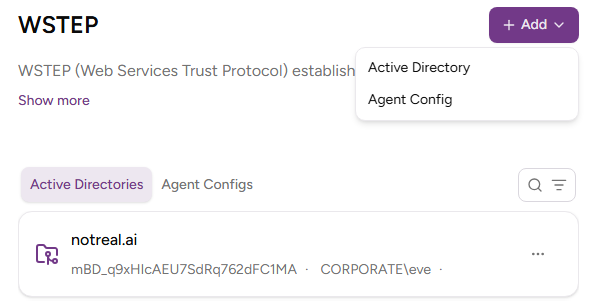
-
Configure the following values:
-
Click Add.
-
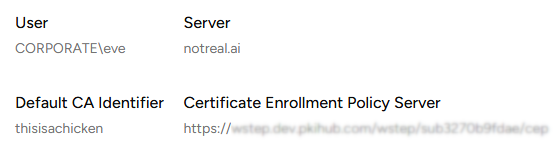
In the details for the new Active Directory, copy the value in the Certificate Enrollment Policy Server field. You will need this value when Enabling WSTEP for users.
Server
Enter an identifier for the Active Directory.
DNS Resolver
Enter the DNS resolver that the WSTEP agent will use to resolve domain names. Use the following syntax:
<ip>[:<port>]
Where:
<ip>is the IP address of the DNS server.<port>is the port of the DNS service (default is 53).
User
Enter the name of a user with administrative permissions in the Windows domain.
Password
Enter and confirm the password for the selected user.
LDAP Certificate Chain
Select the file containing the certificate chain for the Active Directory server.
CA Identifier
Select the issuing subordinate CA that will process the WSTEP enrollment requests. This list only includes certificate authorities with at least one wstep profile. You can either:
- Create a new CA with this group, as explained in Creating an issuing subordinate authority.
- Add this group to an existing CA, as explained in Updating the profile list.