Installing the default set of certificate templates
If they are not installed, install the default set of Microsoft certificate templates as described in the sections below.
- Enabling the Certificate Templates snap-in
- Installing the default set of Microsoft Certificate Templates using the snap-in
Enabling the Certificate Templates snap-in
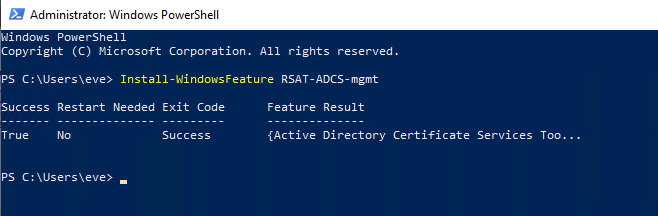
You can enable the Certificate Templates snap-in by running the following PowerShell command.
Install-WindowsFeature RSAT-ADCS-mgmt
For example:
You can also enable the Certificate Templates snap-in using the Windows Server Manager wizard.
To enable the Certificate Templates snap-in with the Windows Server Manager:
-
Open Microsoft Management Console (MMC) – for example, by pressing the Windows key on the keyboard and typing “mmc.exe” in the Windows search box.
-
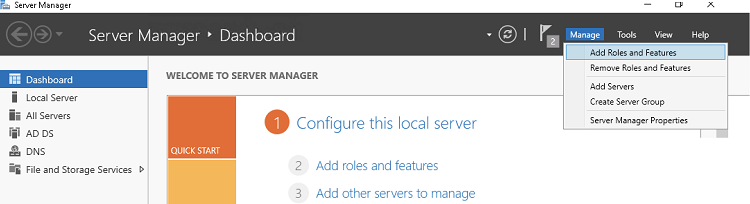
On the top-right of the window, click Manage > Add Roles and Features.
-
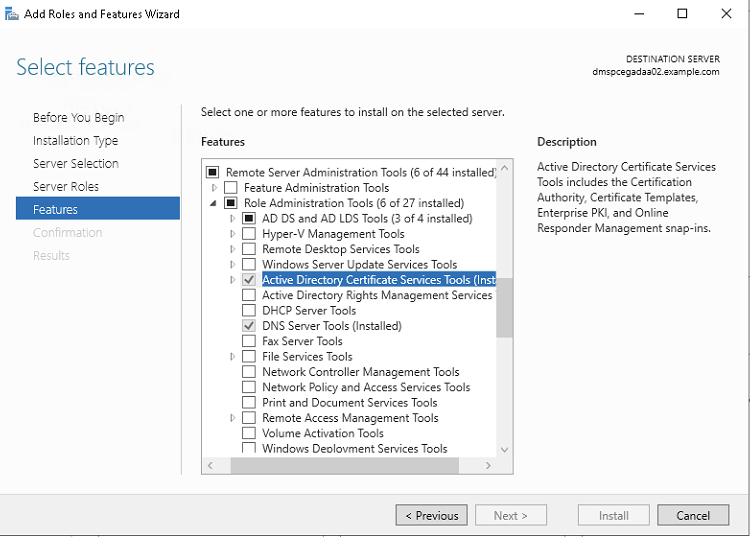
In the Select Features dialog, click Next until you reach the Features section.
-
Check the following box: Remote Server Administration Tools / Remote Administration Tools / Active Directory Certificate Services Tools.
-
Click Next until the Install button appears, then click Install.
-
Wait for the installation to complete before proceeding to the next step.
Installing the default set of Microsoft Certificate Templates using the snap-in
After Enabling the Certificate Templates snap-in, add the snap-in to install the default set of Microsoft Certificate Templates.
To install the default set of Microsoft Certificate Templates using the snap-in:
-
Log in to the root domain of the Active Directory forest as a member of both the Enterprise Admins and Domain Admins groups.
Users without these privileges cannot access the dialog options described in this section. -
Open Microsoft Management Console (MMC) – for example, by pressing the Windows key on the keyboard and typing “mmc.exe” in the Windows search box.
-
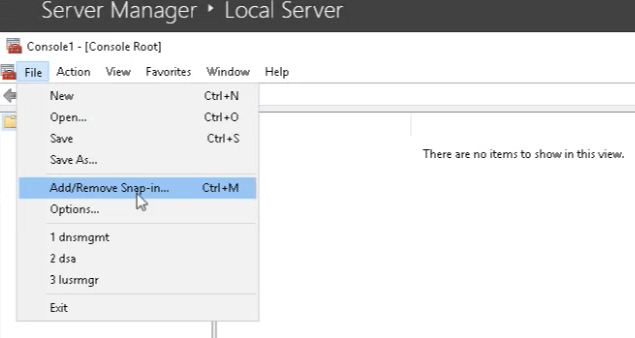
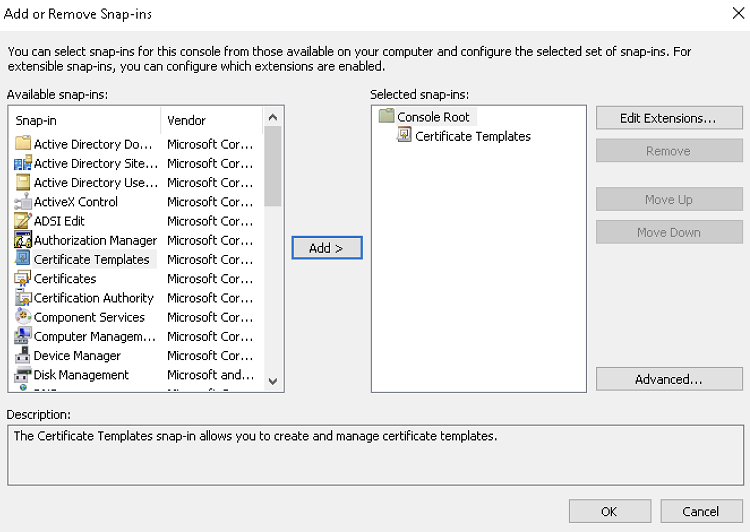
Select File > Add/Remove Snap-in.
-
In the Available snap-ins column, select Certificate Templates.
-
Click Add to move the Certificate Templates snap-in to the Selected snap-ins column.
-
Click OK to close the Add or Remove Snap-ins wizard and return to the Microsoft Management Console.
-
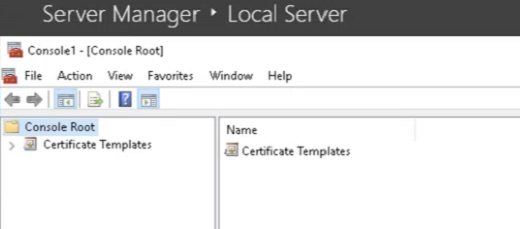
In the Microsoft Management Console, click Certificate Templates under Console Root.
-
Click Yes in the confirmation dialog.
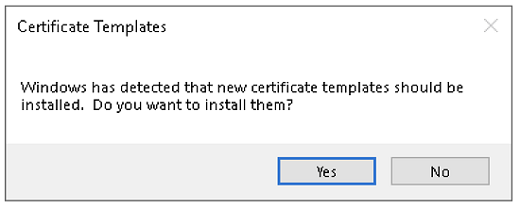 If you click No in the confirmation dialog, remove the Active Directory Certificate Services Tools and repeat all the steps in this section.