Integrating the MCP server
The PKIaaS MCP (Model Context Protocol) server connects to backend services and exposes PKI functionality through a conversational interface for managing certificate authorities, certificates, certificate profiles, and instances. For example:
- Which PKIaaS instances can I access?
- Which certificates issued by the Acme CA expire in the next 90 days?
- Sign this CSR with the issuing CA and the privatessl-tls-server profile, and set the subject DN to
CN=web.example.com - Create a subordinate CA with the
issuing-01name, signed by our root, with an RSA 4096 key. - Revoke the
00bf66db90465ae28516357abc97bd9118certificate with Key Compromise as the revocation reason.
See below for how to integrate this server with different clients.
- Integrating VS Code GitHub Copilot with PKIaaS MCP
- Integrating Claude Desktop with PKIaaS MCP
- Integrating Claude Code with PKIaaS MCP
- Integrating other clients with PKIaaS MCP
Integrating VS Code GitHub Copilot with PKIaaS MCP
Use the PKIaaS MCP extension to make PKIHub tools available in GitHub Copilot Chat for Visual Studio Code.
To configure PKIHub tools in GitHub Copilot for Visual Studio Code:
-
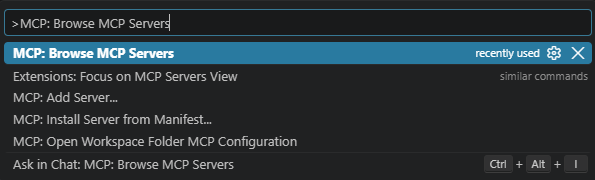
Open the Command Palette:
- On Windows and Linux, press Ctrl+Shift+P.
- On macOS, press Cmd+Shift+P.
-
Enter MCP: Browse MCP Servers, then select the command from the results.
-
Search for
@mcp pkiaasin the extensions list. -
Install the PKIaaS MCP extension.
-
Complete the browser sign-in when prompted.
-
Open GitHub Copilot Chat.
-
Select Configure Tools.
-
Enable the PKIHub MCP Server tools.
Integrating Claude Desktop with PKIaaS MCP
The following steps explain how to integrate Anthropic Claude Desktop with PKIaaS MCP.
To configure the PKIaaS MCP endpoint in Anthropic Claude Desktop:
-
Go to Settings > Developer > Edit Config
-
Open
claude_desktop_config.json. -
Add the PKIaaS server under
mcpServers.{ "mcpServers": { "pkiaas": { "type": "http", "url": "<url>" } } }Where
<url>is:https://mcp.pkiaas.entrust.com/mcpfor the United States region.https://mcp.eu.pkiaas.entrust.com/mcpfor the Europe region.
If your version of Claude Desktop only supports local (stdio) MCP servers, use the
mcp-remotebridge to connect to the remote HTTPS endpoint. For example:{ "mcpServers": { "pkiaas": { "command": "npx", "args": ["-y", "mcp-remote", "https://mcp.pkiaas.entrust.com/mcp"] } } } -
Restart Claude Desktop.
-
Complete the browser sign-in when prompted.
Integrating Claude Code with PKIaaS MCP
The following steps explain how to integrate Anthropic Claude Code with PKIaaS MCP.
To configure the PKIaaS MCP endpoint in Anthropic Claude Code:
-
Run the following command to register the server.
claude mcp add --transport http pkiaas <url>Where
<url>is:https://mcp.pkiaas.entrust.com/mcpfor the United States region.https://mcp.eu.pkiaas.entrust.com/mcpfor the Europe region.
For example:
claude mcp add --transport http pkiaas https://mcp.pkiaas.entrust.com/mcp -
Run
claudeto start the assistant. -
Complete the browser sign-in when prompted.
Integrating other clients with PKIaaS MCP
Any client that supports the Model Context Protocol over HTTPS with OAuth can connect to the PKIaaS MCP server.
To integrate other clients with PKIaaS MCP:
-
Point the client at the
/mcpendpoint.https://mcp.pkiaas.entrust.com/mcpfor the United States region.https://mcp.eu.pkiaas.entrust.com/mcpfor the Europe region.
-
Complete the browser sign-in when prompted.