Requesting eForm entities
Follow the steps below to request an eForm entity and the corresponding certificate.
To request an eForm entity:
-
Generate a Certificate Signing Request (CSR) for a TLS certificate using your preferred tools.
-
Follow Accessing your instances to log in to the PKIaaS user interface using an account with one of the following roles:
-
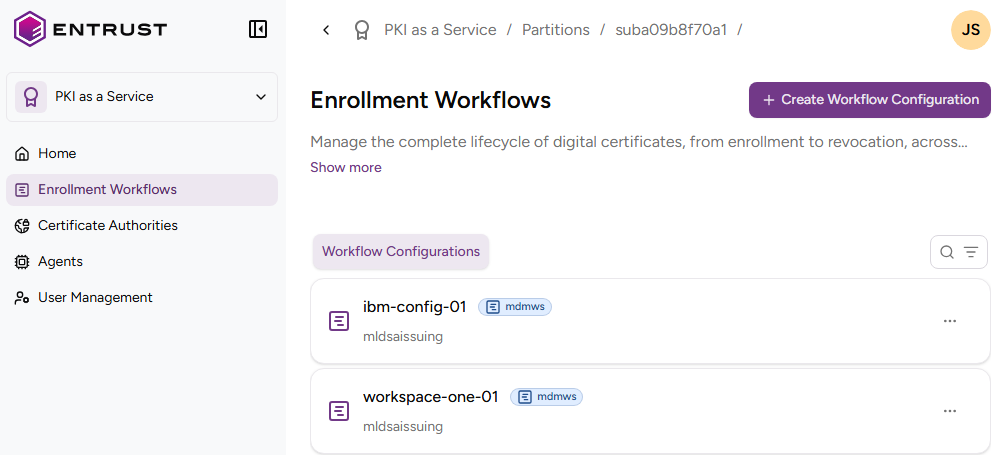
Click Enrollment Workflows in the sidebar.
-
Select an eForm workflow configuration.
-
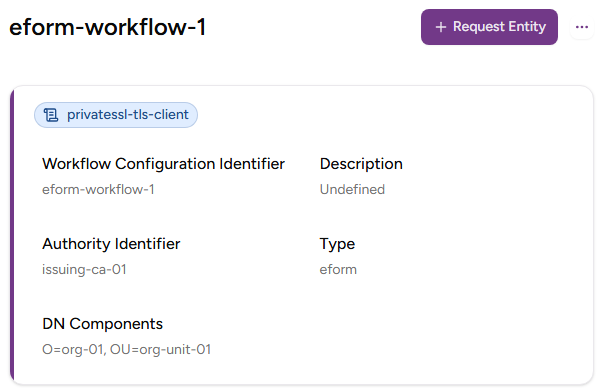
On the workflow details page, click Request Entity.
-
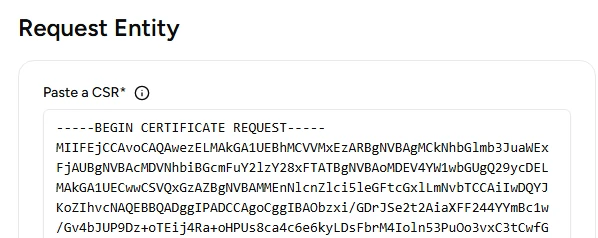
Paste the CSR contents under Paste a CSR.
-
Configure the following settings for the certificate you are issuing.
Subject
The Distinguished Name (DN) of the certificate subject (locked).
The Common Name (CN) field in this Distinguished Name is determined as follows.
| CN in CSR | SANs in CSR | CN in issued certificate |
|---|---|---|
| ✔ | ✔ | The CN in the CSR |
| ✔ | The first SAN in the CSR | |
| The first SAN added by the user in the Additional SANs field |
The other fields are DN Components selected when Creating an eForm enrollment workflow.
DNS Name
The DNS names defined as Subject Alternative Names in the CSR or added using the Additional SANs field.
- The first DNS name is locked and matches the CN.
- You can delete the remaining DNS names.
Additional SANs
The Domain Names you want to manually add as Subject Alternative Names (SANs).