Creating a root authority
A root Certificate Authority (CA) is the topmost entity in a hierarchy of digital certificates that establishes trust in a Public Key Infrastructure (PKI). The root CA issues and signs certificates for intermediate or issuing subordinate CAs, which in turn can issue certificates to end-users, servers, or devices.
To create a root CA:
-
Follow Accessing your instances to log in to the PKIaaS user interface using an account with one of the following roles:
-
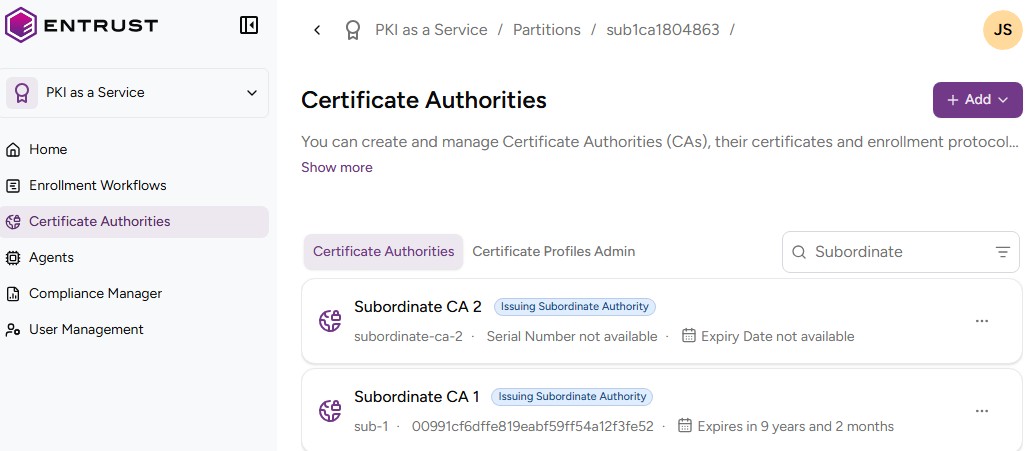
Click Certificate Authorities in the sidebar.
-
Click Add and select Certificate Authority.
-
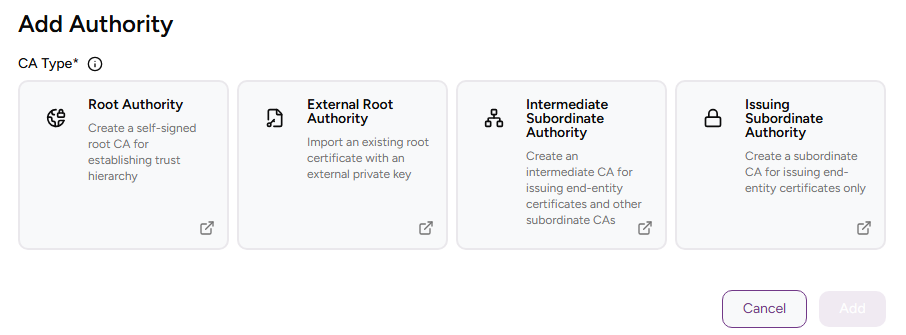
Click Root Authority.
-
Complete the following values.
-
Click Add.
-
Check the details of the created CA — for example, the Serial Number of the Certificate Signing Certificate.
CA Identifier
Enter a unique identifier for the new CA in your PKI hierarchy. This identifier:
- Must contain 2-18 characters.
- Can only include lowercase letters, numbers, hyphens (’-’), and underscores (’_’).
Friendly Name
Write a descriptive name for the CA in your PKIaaS instance.
CA Certificate Profile
Select a certificate profile from the rootcert group. Use either:
- The predefined root-ca profile.
- A custom profile created as described in Customizing certificate profiles.
Signing Key Details
Select a combination of cryptosystem and hash algorithm for the new CA to sign certificates.
Expiry Date
Select an expiry date for the Certificate Signing Certificate of the new CA.
⚠ If the CA certificate is not renewed, the CA will cease operation after its expiration date.
Enable CRL
This read-only box is always checked because PKIaaS authorities always provide a CRL publishing endpoint.
Enable OCSP
Check this box to enable an OCSP (Online Certificate Status Protocol) service for the new certificate authority.
Certificate Profiles
Select the Authority certificate profiles that the new root CA will support for issuing certificates to authorities.
- Click + to expand the profiles of the selected groups.
- Select the checkboxes of the profiles you want to enable.
Subject
Enter a value for each RFC 5280 attribute in the certificate subject’s Distinguished Name (DN).
| Field | Mandatory |
|---|---|
| Common Name | ✔ |
| Organization | ❌ |
| Organizational Unit | ❌ |
| State/Province | ❌ |
| Locality Name | ❌ |
| Domain Component | ❌ |
| Country | ❌ |
Alternatively, you can:
- Toggle the Advanced Subject switch.
- Type a Distinguished Name (DN) that includes additional attributes.
The resulting Distinguished Name will uniquely identify the Certificate Signing Certificate of your new CA — for example:
CN=MyRootCA, O=MyOrganization, L=MyCity, ST=MyState, C=US