Inviting users
Follow the steps below to add PKIaaS users by sending invitation emails.
To invite a user:
- Follow Accessing your instances to log in to the PKIaaS user interface using an account with the Owners role.
-
Select User Management in the sidebar.
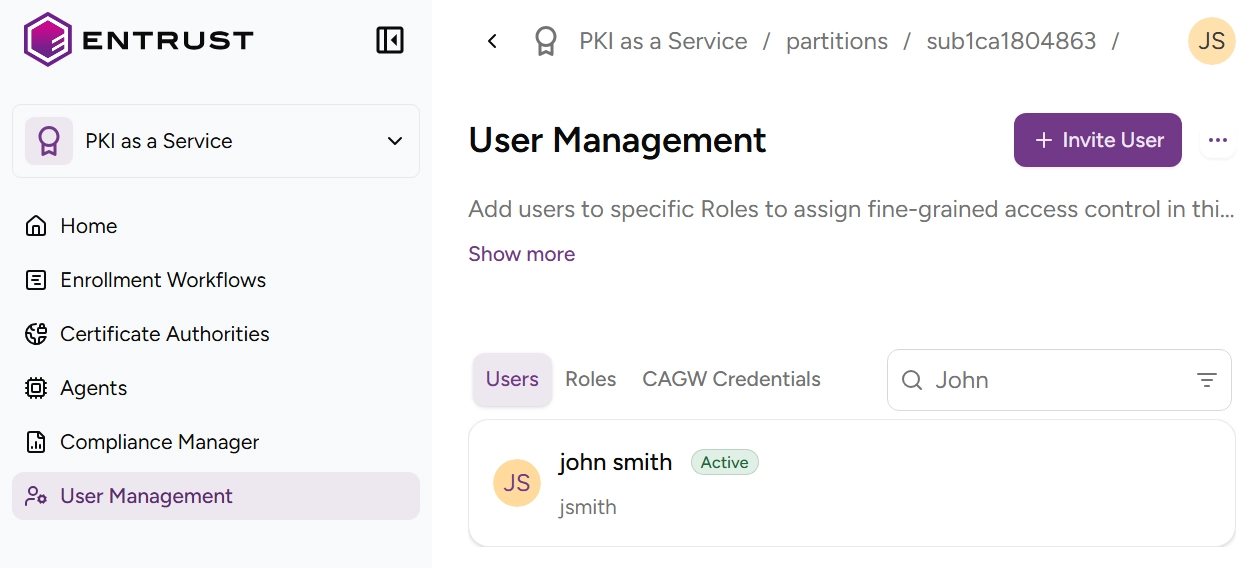
-
Click the plus + icon to the right of the Users tab.
-
Fill in the Invite User form fields.
- The Email address to send the invite to.
- The First Name and Last Name as the user interface displays them.
- The Roles granted to the new user.
-
Click Invite to send an email that includes a link to confirm the invitation and generate PKIaaS user credentials.