Adding an external IdP
Entrust provides IDaaS as the default Identity Provider (IdP) for PKIaaS users. You can replace the default provider by adding an external OpenID Connect (OIDC) provider.
To add an external identity provider:
-
Configure an account on an external OpenID Connect (OIDC) identity provider.
User email addresses in the external identity provider must match those on Entrust Cloud Console. -
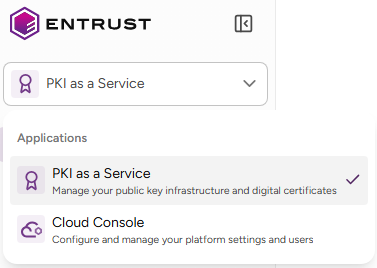
Navigate to the Entrust Cloud Console at https://my.cloud.entrust.com. If you are logged in to the PKIaaS interface, you can click Cloud Console in the top-left selector.
-
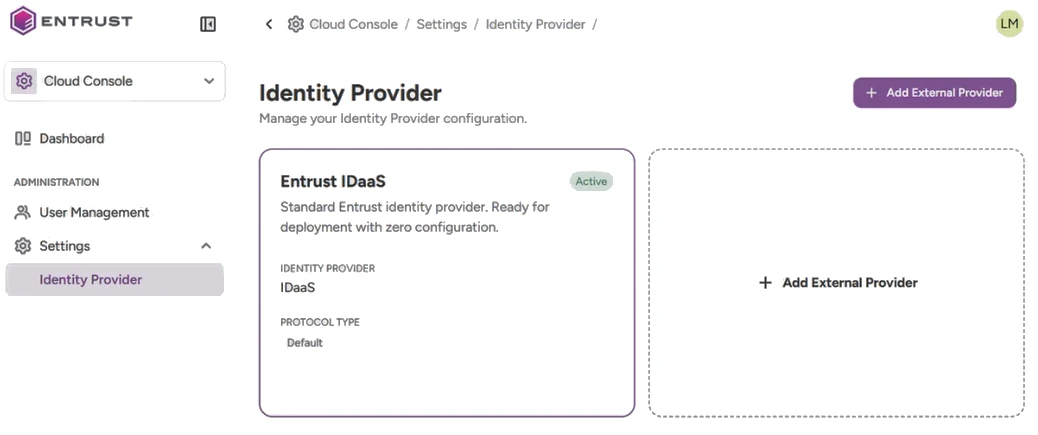
In the Cloud Console, navigate to Settings > Identity Provider.
-
Click Add External Provider and complete the following steps.
We recommend keeping the OpenID Connect console open in a different browser tab while performing the steps below.
Add Cloud Console to OIDC
In this step:
-
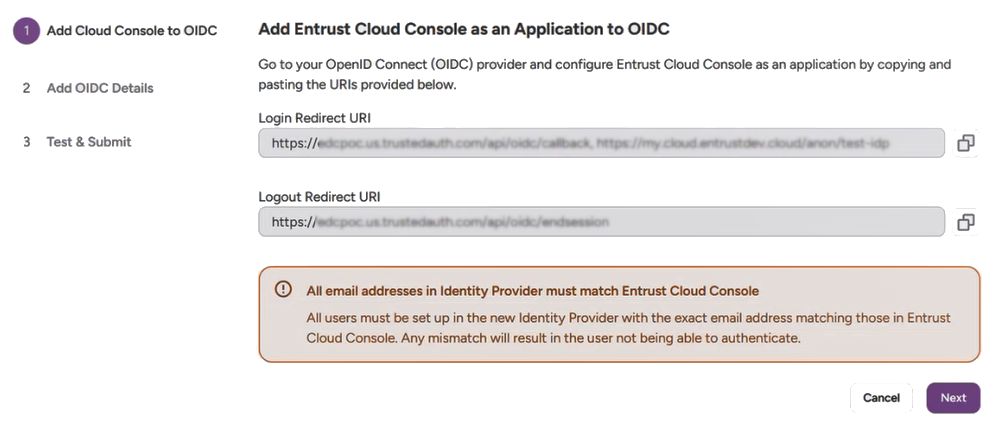
Copy the Login Redirect URI and Logout Redirect URI values.
-
Paste them into the fields with the same name in your OpenID Connect account.
-
Click Next.
Add Details and Secrets from OIDC
In this step, configure the following settings, then click Next.
| Setting | Value |
|---|---|
| Issuer URL | The base URL of your OpenID Connect account |
| Client ID | The client identifier of your OpenID Connect account |
| Client Secret | The client secret of your OpenID Connect account |
Test & Submit
In this step:
-
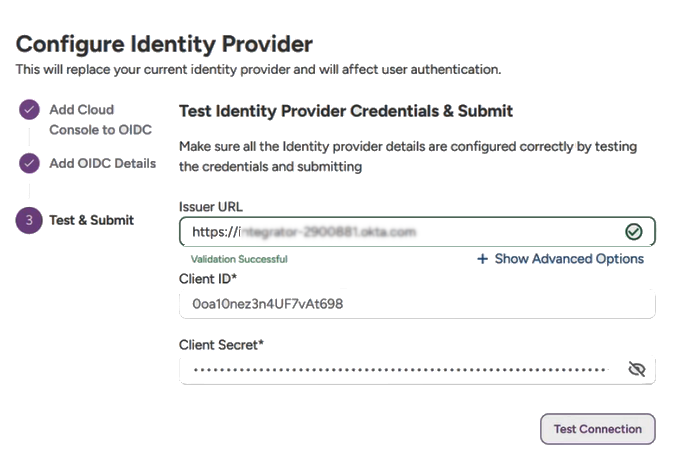
Click Test Connection to trigger authentication with the external OpenID Connect provider.
-
Authenticate with your OpenID Connect account credentials.
-
After successful authentication, click Show Advanced Options to display the automatically populated endpoint parameters.
-
Click Submit. You will receive a confirmation email in your inbox.