Installing the LDAPS TLS certificates
Repeat the following steps on each domain controller to install the LDAPS TLS certificate in the NTDS Personal certificate store.
To install the LDAPS TLS certificate on a domain controller:
-
On the domain controller machine, copy the P12 file obtained when Generating the LDAPS TLS certificates.
-
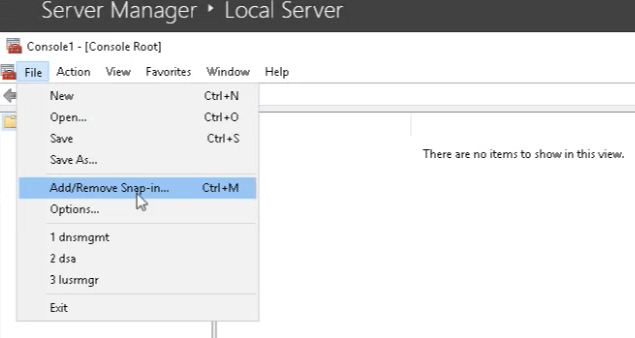
Open Microsoft Management Console (MMC) – for example, by pressing the Windows key on the keyboard and typing “mmc.exe” in the Windows search box.
-
Select File > Add/Remove Snap-in.
-
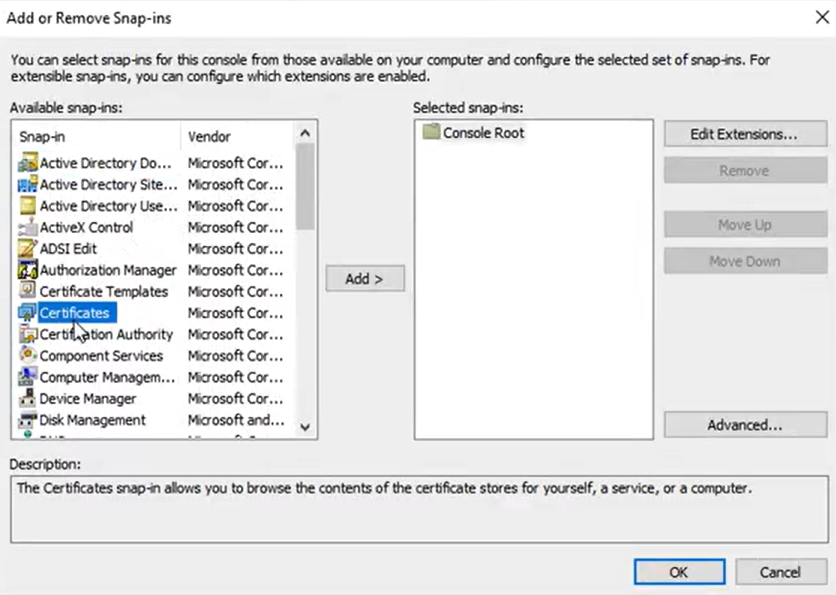
In the Available snap-ins column, select Certificates.
-
Click Add.
-
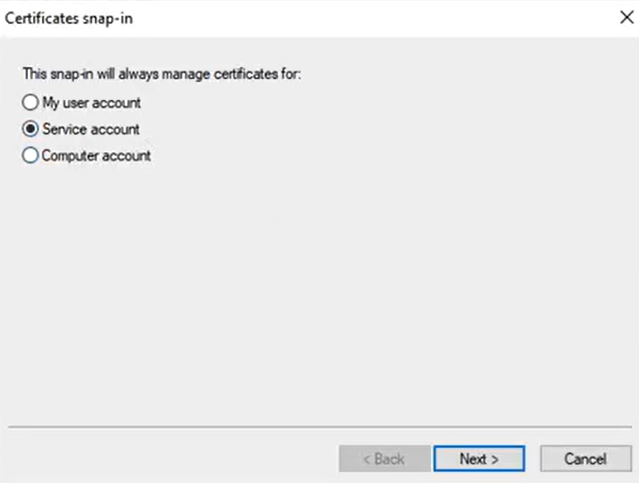
Select Service account and click Next.
-
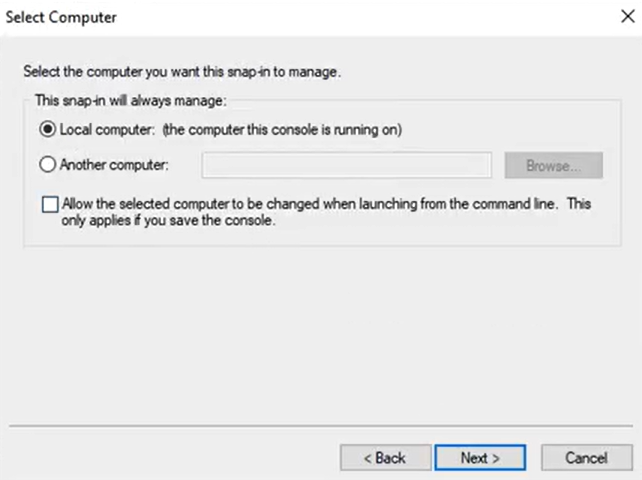
Select Local computer and click Next.
-
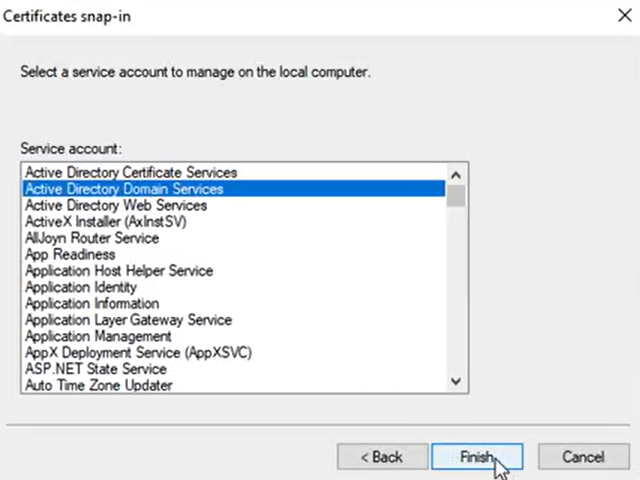
Select Active Directory Domain Services and click Finish.
-
Click OK to close the Add/Remove Snap-in dialog.
-
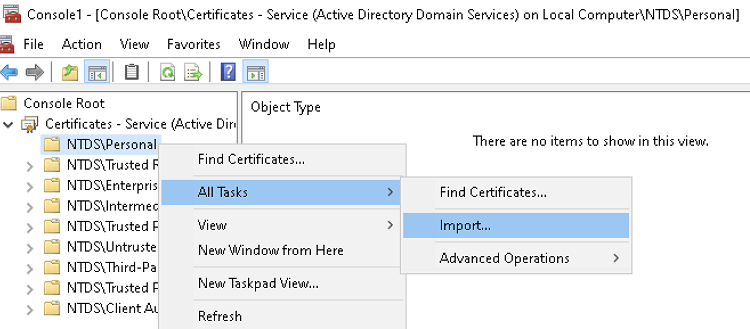
In the management console, right-click NTDS Personal under Certificates.
-
Select All Tasks > Import to display the Certificate Import Wizard.
-
Follow the wizard instructions to import the certificate file, enter the password, and install the certificate in the NTDS Personal certificate store.