Creating an Intune application in Azure
Create an application in the Microsoft Azure portal to integrate with the Intune service.
To create an Intune application in Azure:
-
Log in to https://portal.azure.com as a user with administrative permissions.
-
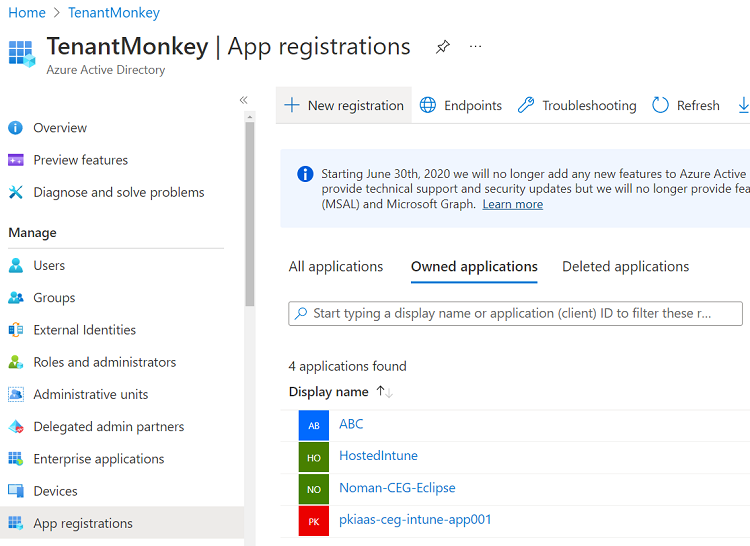
Go to Home > App registrations.
-
Click New registration to display the Register an application page.
-
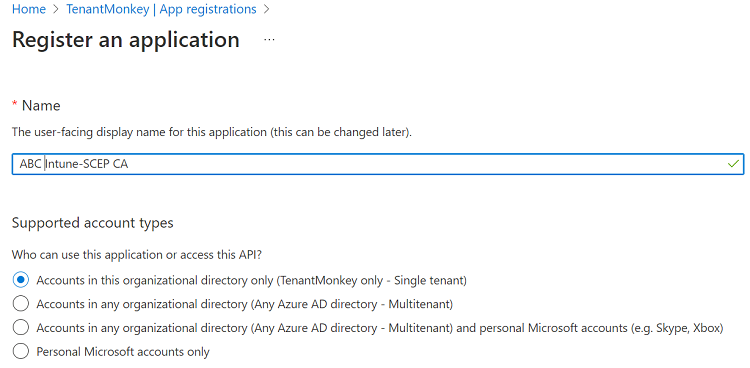
In the Name field, type the name of the new Intune application.
-
In the Supported account types list, select Accounts in this organizational directory only (your organization only - Single tenant).
-
Click Register to display the details of the new application.
-
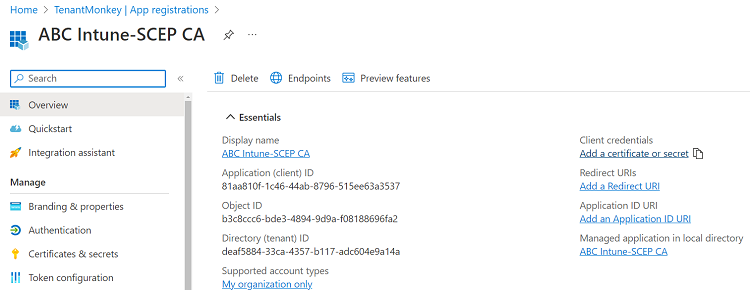
Copy the Application (client) ID and Directory (tenant) ID values to a text file. You will use these values when Configuring Intune in PKIaaS.
-
Click Add a certificate or secret to display the Certificates & secrets page.
-
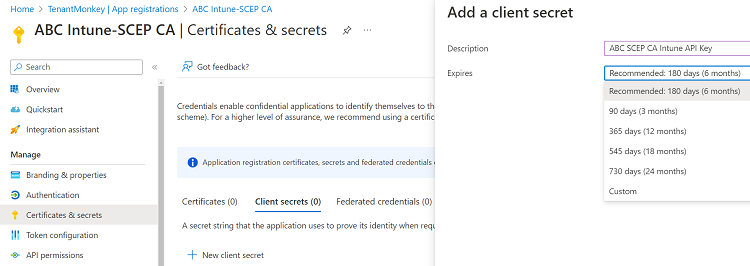
Click New client secret to display the Add a client secret dialog.
-
In the Description field, write a description of the new secret.
-
In the Expires drop-down list, select the expiry date of the new secret.
-
Click Add to add the new secret and close the Add a client secret dialog.
-
On the Certificates & secrets page, copy the Value of the new secret to a text file. You will use this value when Configuring Intune in PKIaaS.
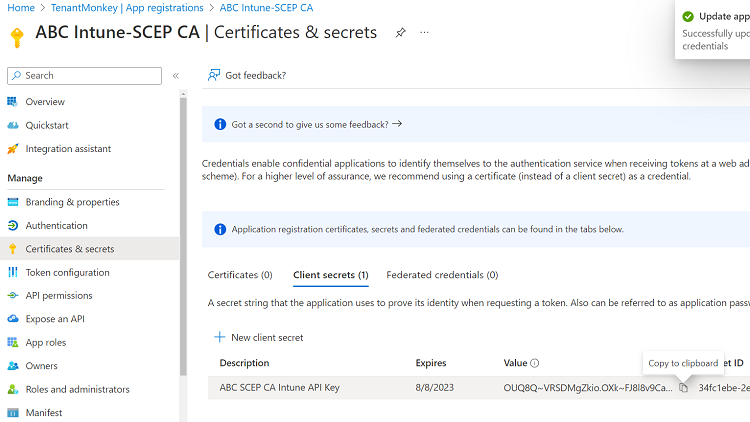 The secret value will no longer be available after leaving this page.
 -
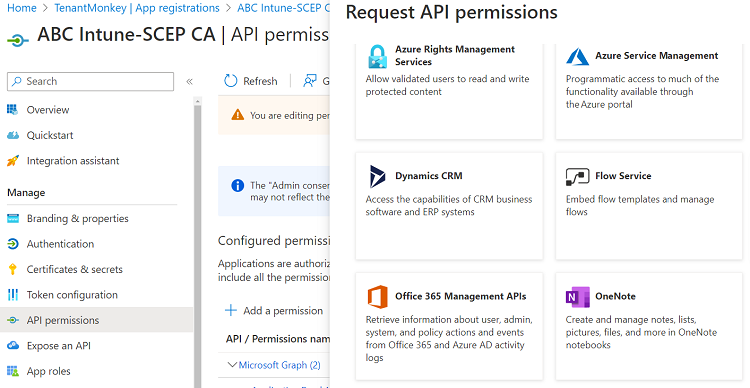
In the navigation sidebar, click API permissions to display the API permissions page.
-
Click Add a permission to display the Request API permissions sidebar.
-
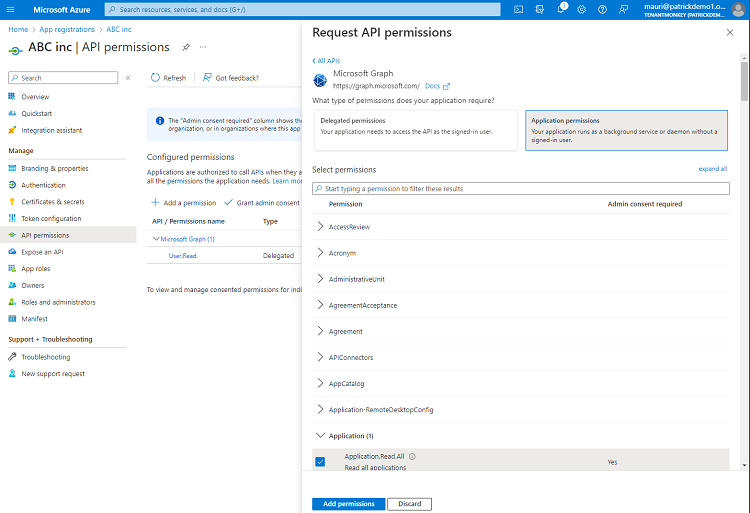
In the Request API permissions sidebar:
- Click Microsoft Graph.
- Under Select permissions, search for and select the Application.Read.All and DeviceManagementManagedDevices.Read.All permission entries.
- Click Add permissions.
-
Click Add a permission to display the Request API permissions sidebar again.
- Click Intune.
- Click Application permissions.
- Under Select permissions, select the scep_challenge_provider permission.
- Click Add permissions.
-
On the API permissions page, click Add admin consent for your organization to grant these permissions to the new Intune application.