Adding a custom field
Follow the steps below to add a certificate custom field.
To add a custom field:
Follow Accessing your instances to log in to the PKIaaS user interface using an account with one of the following roles:
Click Certificate Authorities in the sidebar and select the Custom Fields tab.
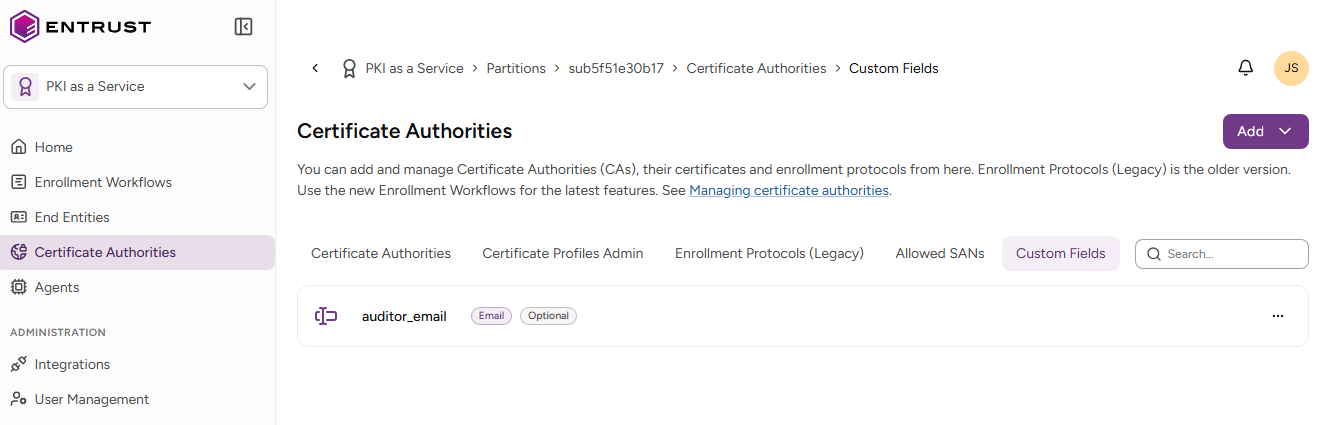
- Select Add > Custom Field.
- Configure the following settings:
- Click Add.
Name
The name of the custom field displayed on the certificate issuance and certificate details pages.
Type
The custom field type. The following types are supported:
| Type | Description |
|---|---|
| Text | Free-form text value |
| Number | Numeric value |
| Email address | |
| Date | Date value |
| List | List of up to 100 options from which the user can select one |
This setting cannot be updated when Modifying a custom field.
Help Message
The text displayed on certificate issuance pages to describe the custom field. For example, when the custom field Type is Text:
Enter the employee ID associated with this certificate.
When the custom field Type is List:
Select the department that will use this certificate.