Managing roles
The sections below describe how to grant or remove roles from users.
See Role permissions for the permissions granted by each role.
Adding users to a role
Follow the steps below to add a user to a role.
To add a user to a role:
- Follow Accessing your instances to log in to the PKIaaS user interface using an account with the Owners role.
-
Authenticate using an account with the Owners role.
-
Select User Management in the sidebar.
-
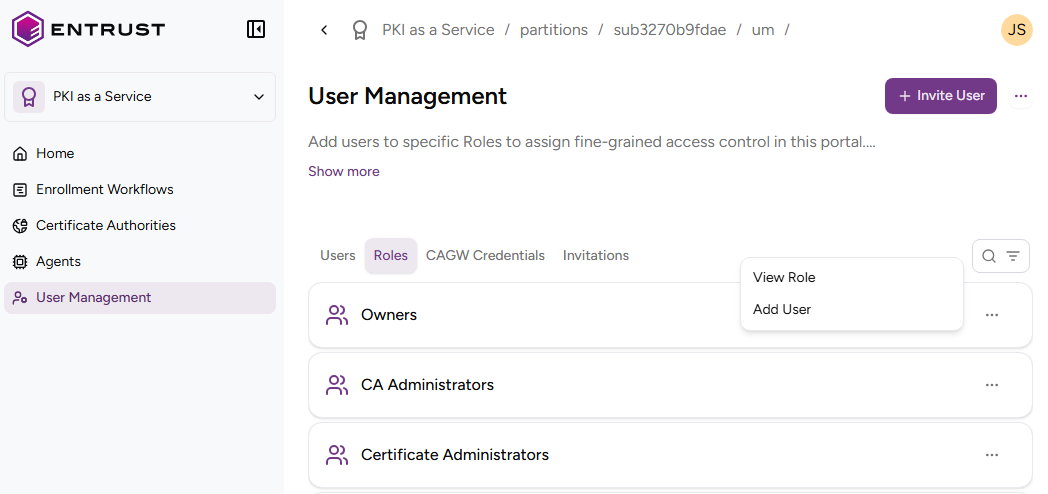
Select the Role tab.
-
Click ACTIONS > Add user for a role.
-
Select the user name from a list of invited users.
-
Click Add.
Removing users from a role
Follow the steps below to remove a user from a role.
After purchasing a subscription, the system automatically designates a user with the Owner role as the subscription administrator. This user is assigned the Subscription admin badge and cannot be removed from the Owner role.
To remove a user from a role:
- Follow Accessing your instances to log in to the PKIaaS user interface using an account with the Owners role.
-
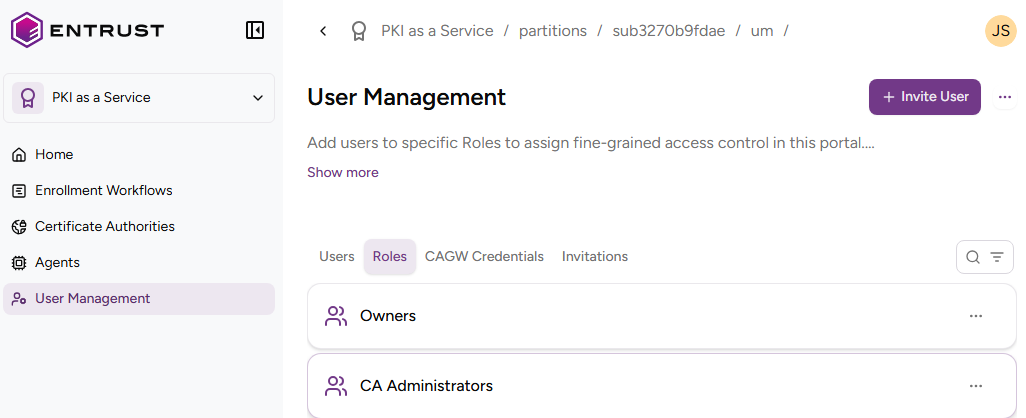
Click User Management in the sidebar.
-
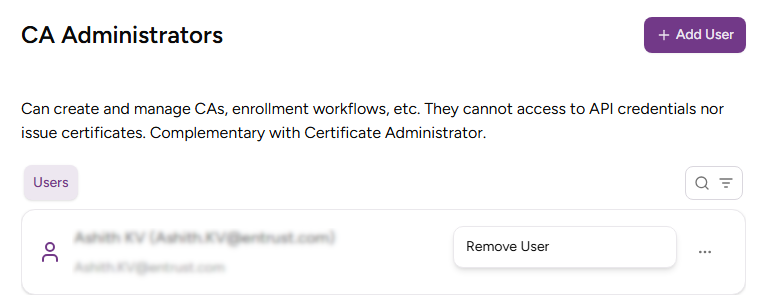
Select the name of a role to display the list of members.
-
Click ACTIONS > Remove User for the user you want to remove.
-
Click Remove in the Remove User confirmation dialog.