Enabling WSTEP for users
Configure the WSTEP to enable WSTEP for users.
To enable WSTEP for users:
-
In the navigation tree of the new WSTEP Group Policy Object, expand User Configuration > Policies > Windows Settings > Security Settings > Public Key Policies.
-
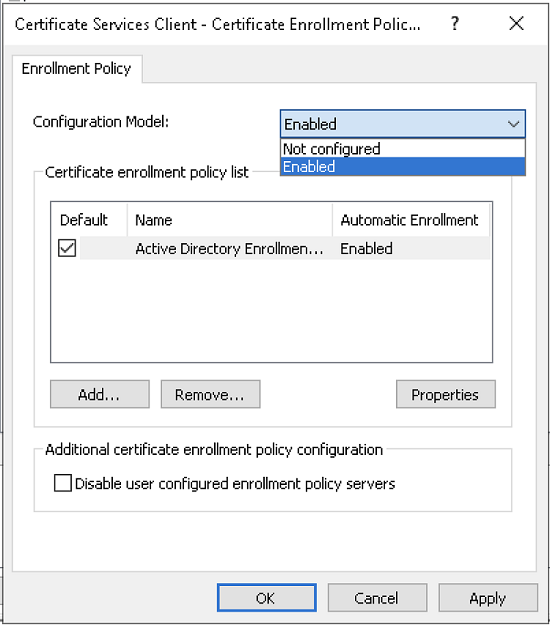
In the content pane, right-click Certificate Services Client - Certificate Enrollment Policy and select Properties to display the Certificate Services Client - Certificate Enrollment Policy Properties dialog box.
-
Select Enabled in the Configuration Model drop-down list.
⚠ If you are not installing WSTEP alongside an existing Microsoft CA WSTEP, select Active Directory Enrollment in the Certificate enrollment policy list pane, and click Remove.
-
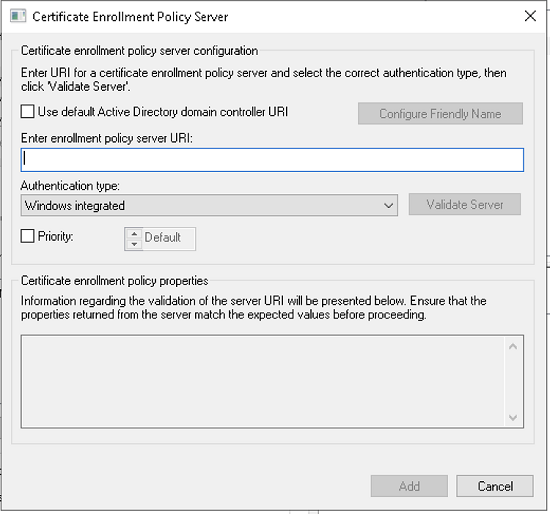
Click Add to display the Certificate Enrollment Policy Server dialog box.
-
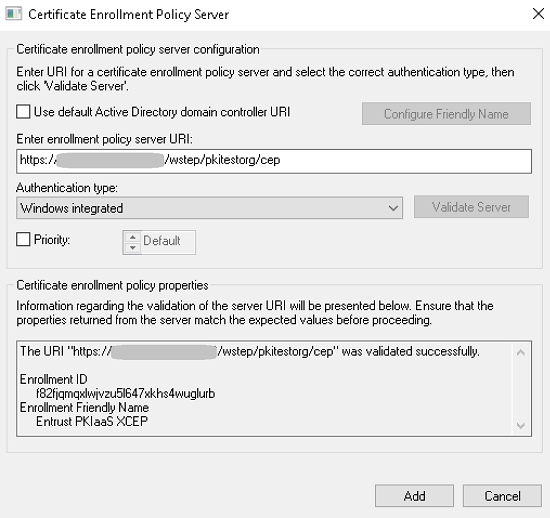
In the Enter enrollment policy server URI field, enter the WSTEP URI you obtained when either:
-
In the Authentication type drop-down list, select the same “Windows Integrated” option (should be selected by default).
-
Click Validate Server and check the URI validation results.
-
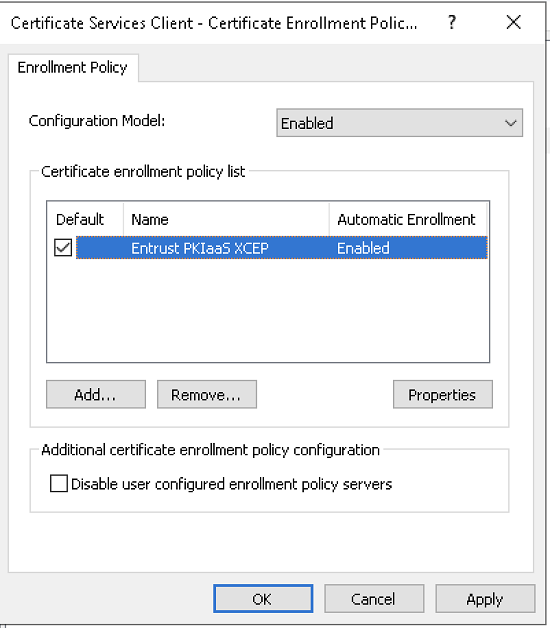
Click Add to add the new WSTEP service to the Certificate enrollment policy list pane.
-
In the Certificate enrollment policy list pane, check the box of the new Entrust PKIaaS XCEP certificate enrollment policy to make it the default one.
-
Click OK.