Creating Intune profiles for Windows in Azure
Create the following profiles to enroll Microsoft Windows devices with Intune.
- A root CA profile
- An issuing CA profile
- An SCEP profile
To create a Windows profile for Intune:
-
Log in to https://endpoint.microsoft.com as a user with administrative privileges.
-
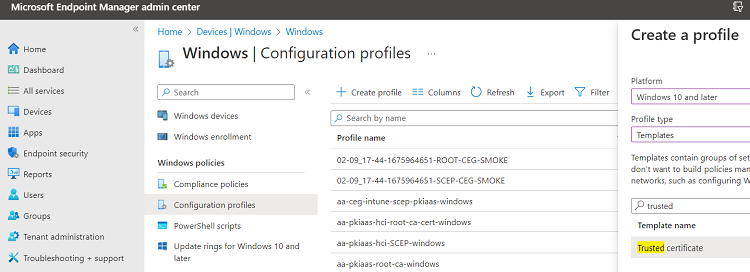
Go to Devices > Windows > Configuration profiles.
-
Click Create profile.
-
Configure the values described in the following sections.
Create a profile
In the Create a profile dialog, select the following values for each Windows profile.
| Setting | Root CA profile | Issuing CA profile | SCEP profile |
|---|---|---|---|
| Platform | Windows 10 and later | Windows 10 and later | Windows 10 and later |
| Profile type | Templates | Templates | Templates |
| Template name | Trusted certificate | Trusted certificate | SCEP certificate |
Basics
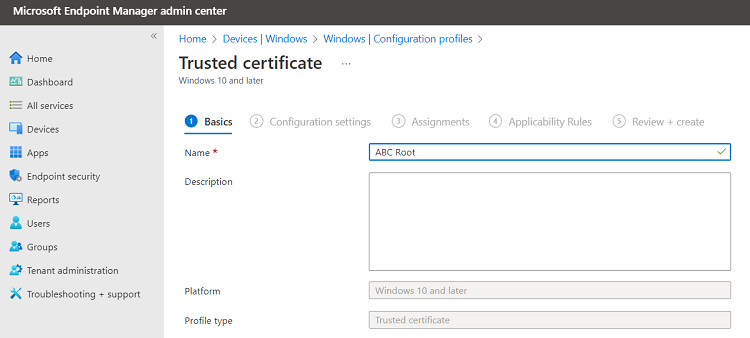
In the Name field of the Basics page, type the name of the profile – for example:
- ABC Root
- ABC Issuing
- ABC Digital Signature SCEP Cert
Optionally, add a description of the profile purpose.
Configuration settings
When creating a root or issuing CA profile for Windows, configure the following settings on the Configuration settings page.
| Setting | Root CA profile | Issuing CA profile |
|---|---|---|
| Certificate file | The root certificate authority certificate | The issuing certificate authority certificate |
| Destination store | Computer certificate store - Root | Computer certificate store - Intermediate |
When creating an SCEP profile for Windows, configure the following settings on the Configuration settings page.
| Setting | Value |
|---|---|
| Certificate type | Select User. |
| Subject name format | The syntax of the certificate subject names. This field supports the variables described in https://learn.microsoft.com/en-us/mem/intune/protect/certificates-profile-scep |
| Subject alternative name | The value of each attribute in the certificate subject alternative name. Optional. |
| Certificate validity period | The validity period of the certificates. |
| Key storage provider (KSP) | Select Enroll to Software KSP for Windows 10 Intune enrollments; select any of the listed values for Windows 11. |
| Key usage | The key usage of the enrolled certificates. |
| Key size (bits) | Select 2048 (Entrust PKIaaS does not support key sizes below 2048). |
| Hash algorithm | Select SHA-2. |
| Root certificate | Select the root CA profile. |
| Extended key usage | Select Client Authentication. |
| SCEP Server URLs | Paste one of the URLs obtained when Configuring Intune in PKIaaS. |
Assignments
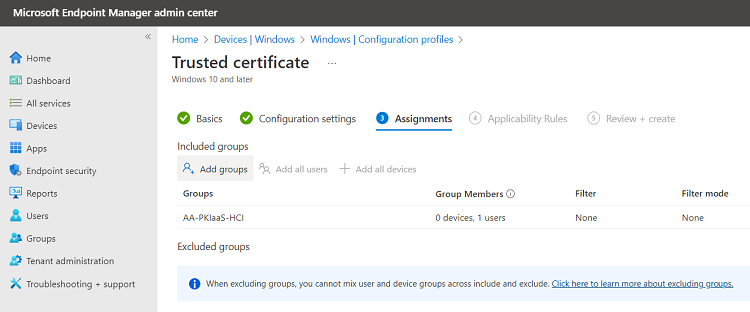
On the Assignments page, select the user group for the Intune-enrolled devices.
Applicability Rules
On the Applicability Rules page, select optional filters for the selected user group, such as the operating system of the devices.
Review and create
On the Review + create page, check the settings of the new profile and click Create to confirm the profile creation.