Checking your subscriptions
Log in to the PKIaaS Supervisor interface to browse the details of your purchased subscriptions.
To browse subscriptions:
-
Open the supervisor interface at https://super.pkiaas.entrust.com in supported browsers:
- Apple Safari
- Google Chrome
- Mozilla Firefox
-
Authenticate using your credentials.
-
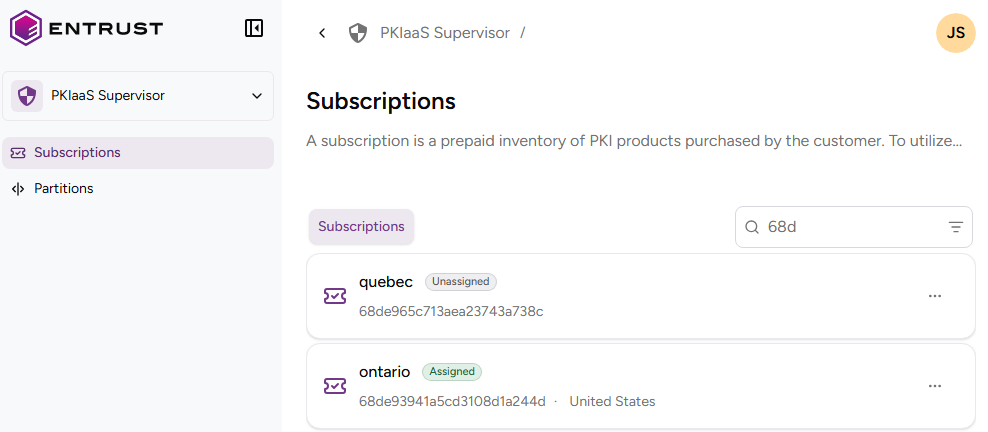
Click Subscriptions in the sidebar.
-
Select the name of a subscription to inspect the following subscription details.
Subscription Identifier
The internal identifier of the subscription.
Status
The subscription status:
- Assigned, if you deployed the subscription as an instance as described in Creating instances.
- Unassigned, otherwise.
Region
The region selected when creating the instance.
URL
The URL for managing the CAs and certificates of the instance as described in Accessing your instances.
Inventory
The PKIaaS Certificates section displays the number of subscription certificates in <issued>/<purchased> format. Where:
<purchased>indicates the largest number of certificates allowed for your subscription.<issued>indicates the number of certificates already issued.
The PKIaaS CA (Root or Issuing) section displays the number of certificate authorities in <active>/<purchased> format. Where:
<purchased>indicates the largest number of certificate authorities allowed for your subscription.<active>indicates the number of active certificate authorities.