Designing reports
See below for designing a CSV report for end entities or certificates.
Once generated, reports are automatically sent to the email address of the user that designed them, and can be manually downloaded during 90 days.
To design a report:
-
Follow Accessing your instances to log in to the PKIaaS user interface using an account with one of the following roles:
-
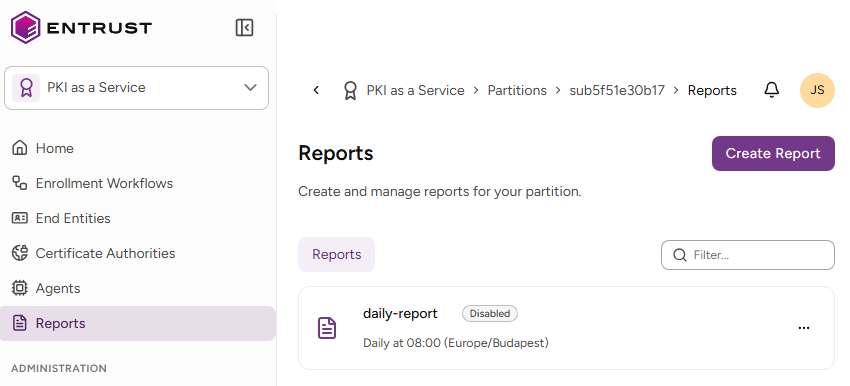
Click Reports in the sidebar
-
Click Create Report.
-
Configure the following settings.
-
Click Preview to display a report with the selected settings.
-
Click Create.
Report Name
A unique name for the report.
Data Source
The type of data recorded in the generated reports.
-
To record actions of the enrollment end-entities:
- Click End-entities
- Define optional filters – for example, to include only active end-entities.
-
To record actions on certificates:
- Click Certificates.
- Select the Issuing CA of the certificates.
- Define optional filters – for example, to include only certificates by an issuer.
Schedule
The periodicity and schedule of the generated reports. Select:
-
The Frequency of the generated reports:
- Daily
- Weekly
- Monthly
-
The Time of the day on which to generate the report.