Creating an eForm enrollment workflow
Follow the steps below to create an enrollment workflow for issuing TLS certificates with eForm.
To create an eForm enrollment workflow:
-
Follow Accessing your instances to log in to the PKIaaS user interface using an account with one of the following roles:
-
Click Enrollment Workflows in the sidebar.
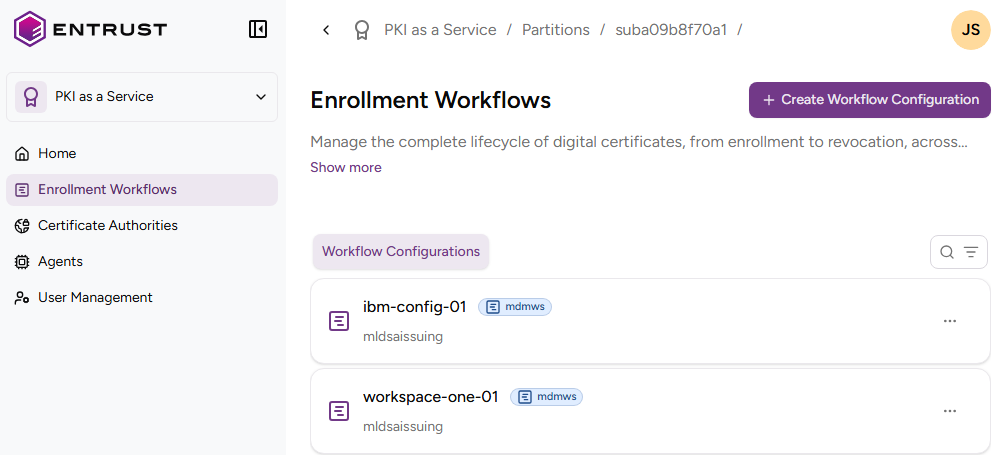
-
Click Add Workflow Configuration.
-
Under Select Enrollment Workflow Type, click eForm.
-
Configure the settings described below.
Workflow Configuration Identifier
Enter a unique identifier for the new configuration in your PKI. This identifier:
- Must contain 2–18 characters
- Can include lowercase letters, numbers, hyphens (’-’), and underscores (’_’)
Description
Enter an optional description of the workflow purpose.
CA Identifier
Select an issuing subordinate authority with at least one profile in the privatessl group.
Certificate Profile
Select one of the privatessl profiles available for the selected certificate authority.
DN Components
Enter values for the following fields in the subject of the issued certificates.
- Organization (O)
- Organizational Unit (OU)
- State/Province (S)
- Locality Name (L)
- Country (C)
All these fields are optional because, in Requesting eForm entities, PKIaaS obtains the mandatory Common Name (CN) field from the CSR or the online request form.
Custom Fields
Enter values for the optional fields described in Managing custom fields.