Opening a session on Azure
After Creating the agent on Azure, wait until the machine status changes from Deployment is in progress to Your deployment is complete, and open a session on the agent.
To open an agent session on Azure:
-
Select the agent in the Agents list.
-
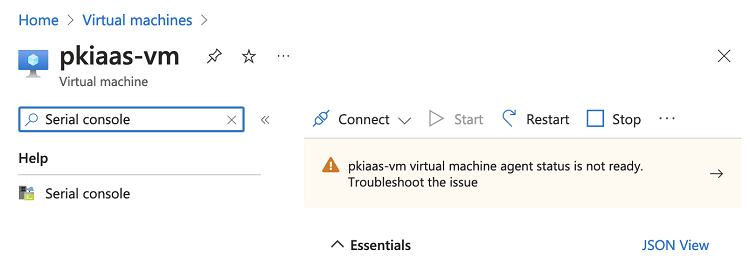
If displayed, ignore the “Agent status is Not ready” warning.
-
Type “Serial console” in the Azure portal search box.
-
Click the Serial console result under the search box.
-
Wait until the serial connection is established and the “Press ENTER to continue” message appears.
-
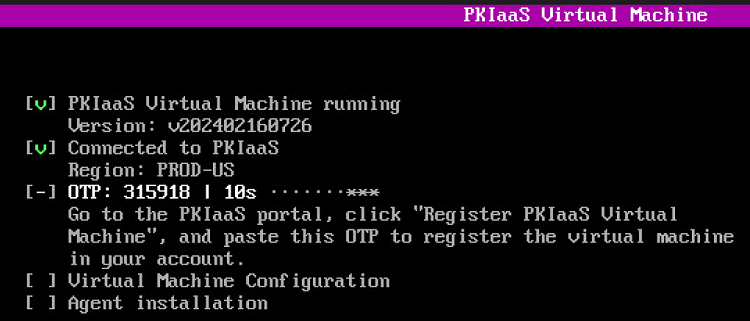
Press the Enter key on your keyboard to launch the agent interface.
-
Take note of the one-time password (OTP) the agent displays at startup. You need this OTP for Registering an agent.
The agent refreshes the OTP every 30 seconds.