Creating eForm TLS enrollment workflows
See below for how to create an enrollment workflow for issuing TLS certificates with eForm TLS.
To create an eForm TLS enrollment workflow:
-
Follow the steps described in Accessing your partitions to log into the PKIaaS interface as a user with any of the following roles:
-
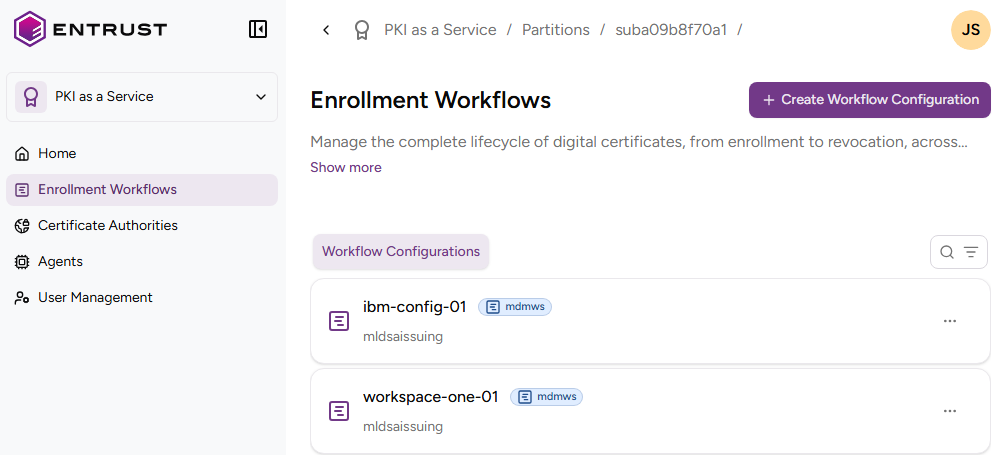
Click Enrollment Workflows in the sidebar.
-
Click Create Workflow Configuration.
-
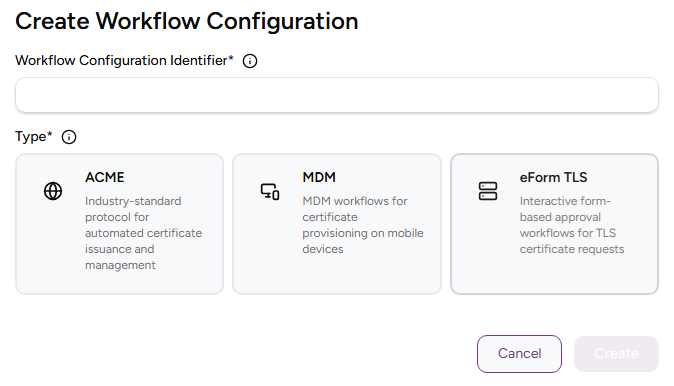
In the Create Workflow Configuration page, click eForm TLS.
-
Configure the settings described below.
Workflow Configuration Identifier
Enter a unique identifier for the new configuration in your PKI. This identifier:
- Must contain 2–18 characters
- Can only include lowercase letters, numbers, hyphens (’-’), and underscores (’_')
Description
Enter an optional description of the workflow purpose.
CA Identifier
Select an issuing subordinate authority with at least one profile of the privatessl group.
Certificate Profile
Select one of the privatessl profiles of the certificate authority.
DN Components
Enter a value for the following fields in the subject of the issued certificates.
- Organization (O)
- Organizational Unit (OU)
- State/Province (S)
- Locality Name (L)
- Country (C)
All these fields are optional because, as explained in Requesting eForm TLS entities, PKIaaS obtains the mandatory Common Name (CN) field from the CSR or the online request form.