Requesting eForm TLS entities
See below for how to request an eForm TLS entity and the corresponding certificate.
To request an eForm TLS entity:
-
Generate a Certificate Signing Request (CSR) for a TLS certificate using your preferred tools.
-
Follow the steps described in Accessing your partitions to log into the PKIaaS interface as a user with any of the following roles:
-
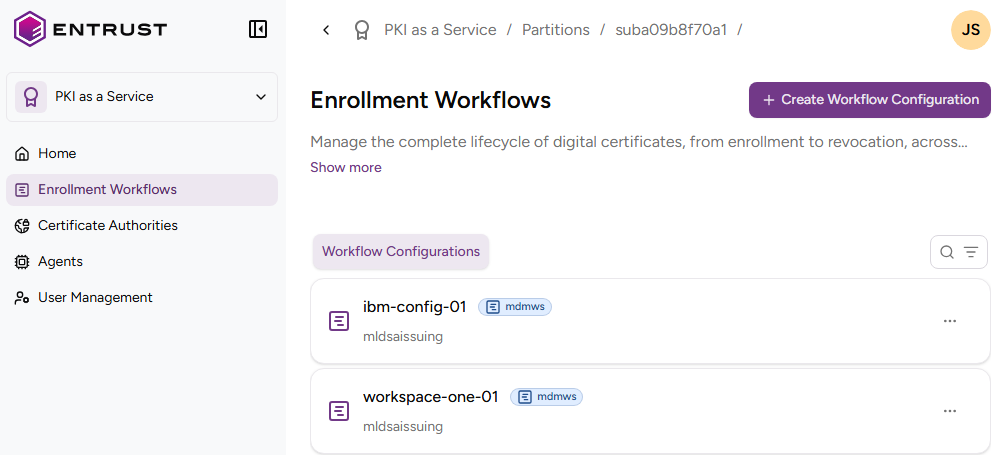
Click Enrollment Workflows in the sidebar.
-
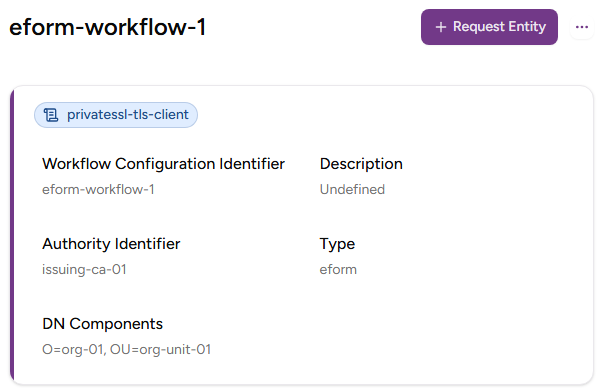
Click on an eForm workflow configuration.
-
In the workflow details page, click Request Entity.
-
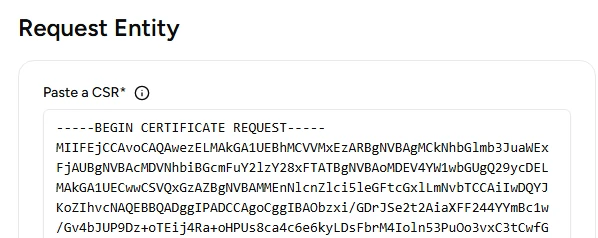
Paste the CSR contents under Paste a CSR.
-
Configure the following settings of the certificate to be issued.
Subject
The Distinguished Name (DN) of the certificate subject (read-only).
The Common Name (CN) field on this Distinguished Name is obtained as follows.
| CN in CSR | SANs in CSR | CN in issued certificate |
|---|---|---|
| ✔ | ✔ | The CN in the CSR |
| ✔ | The first SAN in the CSR | |
| The first SAN added by the user in the Additional SANs field |
The other fields are DN Components selected when Creating eForm TLS enrollment workflows.
DNS Name
The DNS names defined as Subject Alternative Names in the CSR or added using the Additional SANs field.
- The first DNS name is read-only and matches the CN
- The rest of DNS names can be deleted
Additional SANs
The Domain Names you want to manually add as Subject Alternative Names (SANs).
⚠ This field is mandatory when the CSR contains neither a CN nor a SAN field.