Assigning subscriptions to partitions
Log into the PKIaaS Supervisor interface to assign your purchased subscriptions to a partition.
ℹ As explained in Definitions, a partition serves as a dedicated and secure environment within the PKIaaS platform for a customer to manage and run a PKI.
To assign a subscription:
-
Open the supervisor interface URL https://super.pkiaas.entrust.com using any of the supported browsers:
- Apple Safari
- Google Chrome
- Mozilla Firefox
-
Authenticate using your credentials.
-
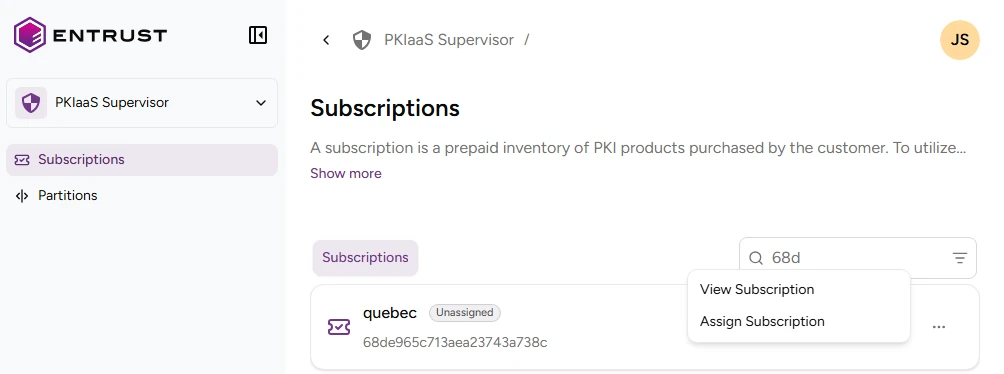
Click Subscriptions in the sidebar.
-
Click the three dots (…) to the right of a partition, and select Assign Subscription.
-
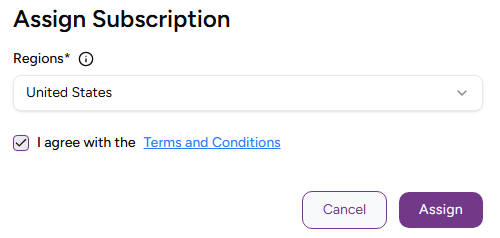
Select a region in the Assign Subscription dialog.
ℹ See Definitions for considerations on selecting a region.
-
Check the I agree with the Terms and Conditions box and click Assign to create a partition for the subscription.
-
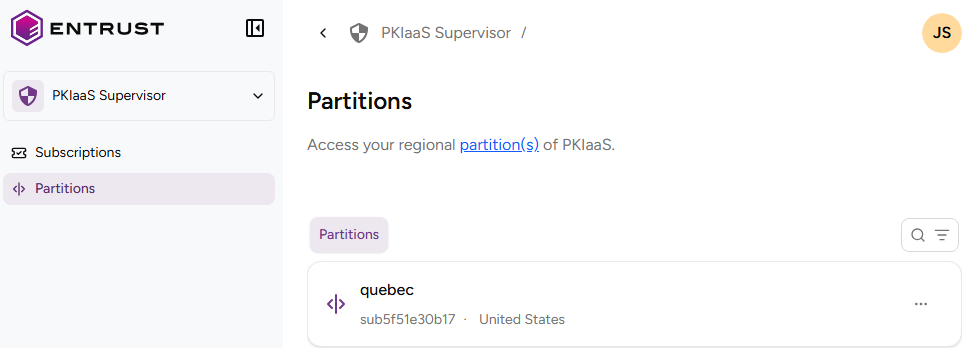
Click Partitions in the sidebar.
-
Check the following values for each partition.
- The label name, which matches the assigned subscription.
- The region selected when assigning the subscription to the partition.
- The internal partition identifier.
-
Click the name of a partition to manage the partition CAs and certificates in the PKIaaS user interface.