Installing on VMware vSphere
Use either the download link or the .ova image file to install an agent in VMware Workstation.
ℹ See Downloading an agent to obtain this file.
To install an agent in VMware vSphere:
-
Log in to your VMware vSphere portal.
-
Right-click on a folder of the navigation tree.
-
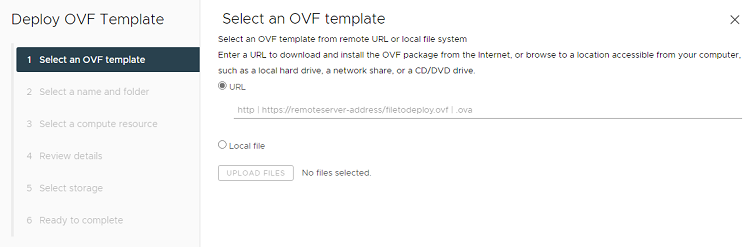
Select the Deploy OVF Template command to display the machine creation wizard.
-
In the Select an OVF template page, click URL to paste the download link, or Local file to import the
.ovaimage file. -
In the Select a name and folder page, select a name and a folder for the new virtual machine.
-
In the Select a compute resource page, select a computing resource for the new virtual machine.
-
In the Review details page, review the settings already selected for the new virtual machine.
-
In the Select storage page, select a storage resource for the new virtual machine.
⚠ Do not enable the Encrypt this virtual machine option.
-
In the Select networks page, select a network meeting the Agent network requirements.
-
In the Ready to complete page, review all the machine settings.
-
Click Finish and wait while VMware vSphere creates the machine.
-
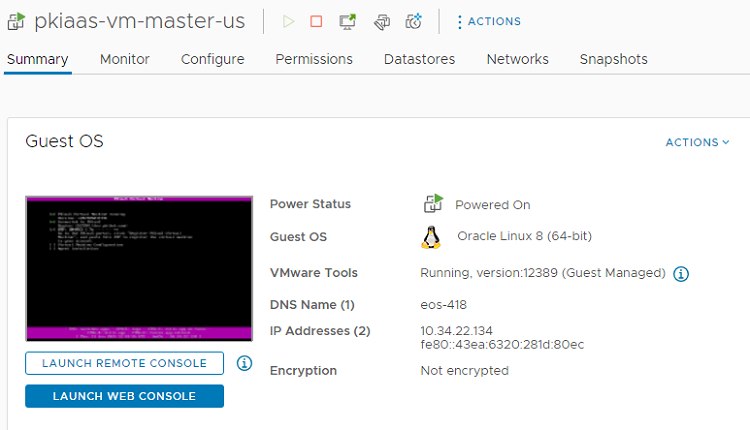
Select the newly created machine in the navigation tree.
-
Click the ▶ icon to power the machine, and wait while the machine starts.
-
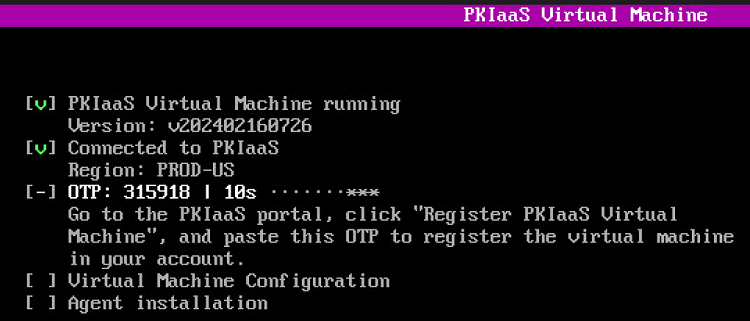
Click LAUNCH WEB CONSOLE to display the machine prompt in your web browser.
-
Take note of the One-time Password (OTP) the agent displays on start. You will need this OTP for Registering an agent.
⚠ The agent refreshes the OTP every 30 seconds.