Configuring an IAM policy
For granting permission to the S3 bucket, create an IAM (Identity and Access Management) policy or reuse an existing one.
ℹ Skip this step if the policy was already configured for a previous deployment.
Creating a new IAM policy
See below for creating an IAM policy granting permission to the S3 bucket.
To create an IAM policy:
-
Type “IAM” in the AWS console search box.
-
Select IAM in the search results to display the IAM dashboard.
-
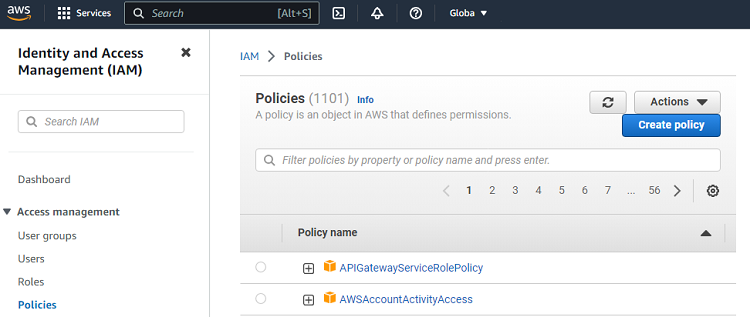
Select Access management > Policies in the navigation sidebar.
-
In the content pane, click the name of an existing IAM policy or click Create policy to create a new one.
-
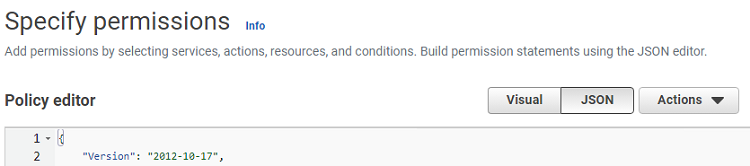
Click JSON in the Specify permissions form.
-
Paste the following JSON code in the Policy editor field.
{ "Version": "2012-10-17", "Statement": [ { "Effect": "Allow", "Action": [ "s3:GetBucketLocation", "s3:GetObject", "s3:ListBucket" ], "Resource": [ "arn:aws:s3:::$S3_BUCKET_NAME", "arn:aws:s3:::$S3_BUCKET_NAME/*" ] }, { "Effect": "Allow", "Action": [ "ec2:ModifySnapshotAttribute", "ec2:CopySnapshot", "ec2:RegisterImage", "ec2:Describe*" ], "Resource": "*" } ] } -
In the JSON code, replace
$S3_BUCKET_NAMEwith the name of the S3 bucket selected when Creating an S3 bucket. -
Click Next.
-
Enter a name and an optional description for the new policy.
-
Click Create policy.
Updating an existing IAM policy
See below for how to update an existing IAM policy for granting permission to the S3 bucket.
To update an IAM policy:
-
Type “IAM” in the AWS console search box.
-
Select IAM in the search results to display the IAM dashboard.
-
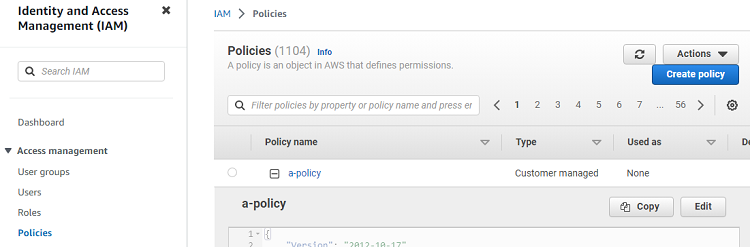
Select Access management > Policies in the navigation sidebar.
-
In the content pane, click the 🞧 expand button for an existing IAM policy.
-
Click Edit.
-
In the policy editor field, add the following code to the
Resourcearray."arn:aws:s3:::$S3_BUCKET_NAME", "arn:aws:s3:::$S3_BUCKET_NAME/*" -
In the code, replace
$S3_BUCKET_NAMEwith the name of the S3 bucket selected when Creating an S3 bucket. -
Click Next.
-
Click Save changes.