Importing the WSTEP certificate chain
Import the WSTEP certificate chain into the GPO previously created in Creating a Group Policy Object.
ℹ See Downloading the certificate chain for how to download the required certificates.
To import the certificate chain into the GPO:
-
Log in to the root Active Directory of the forest as an Active Directory administrator.
-
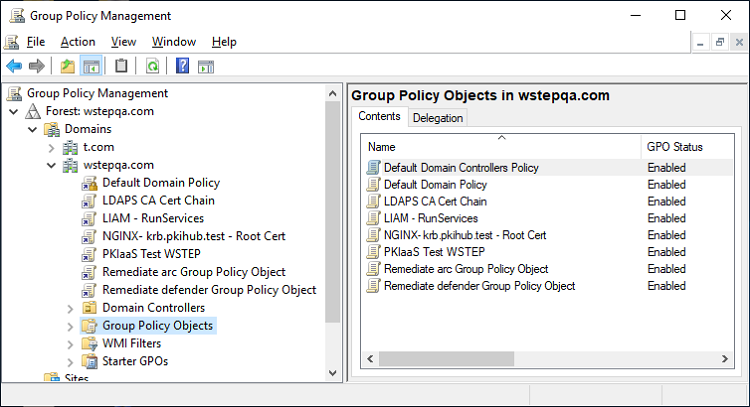
Select Start > Windows Administrative Tools > Group Policy Management to open the Group Policy Management dialog.
-
Right-click the Group Policy Object.
-
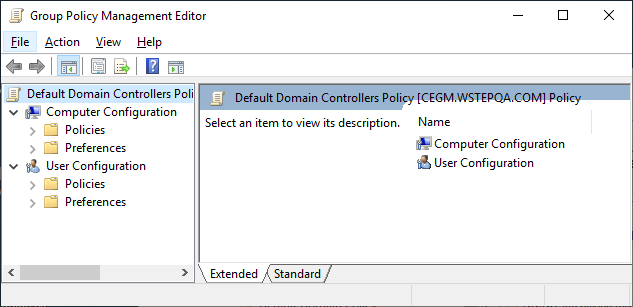
Select Edit to display the Group Policy Management Editor.
-
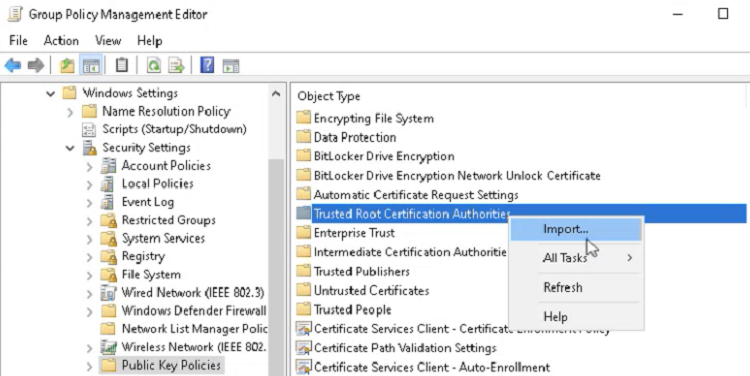
Navigate to Computer Configuration > Policies > Windows Settings > Security Settings > Public Key Policies.
-
Right-click Trusted Root Certificate Authorities and select Import.
-
In the Certificate Import Wizard, click Next and select the root CA certificate file to import.
-
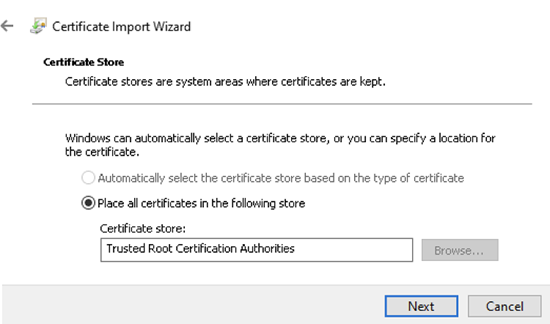
Click Next to reveal the Certificate Store settings.
-
Verify that the selected certificate store is Trusted Root Certification Authorities.
-
Click Next to display the Completing the Certificate Import Wizard.
-
Click Finish to return to the Group Policy Management dialog.
-
In the Group Policy Management dialog, navigate to Computer Configuration > Policies > Windows Settings > Security Settings > Public Key Policies.
-
Right-click Intermediate Certificate Authorities and select Import to display the Certificate Import Wizard.
-
Click Next and select the issuing CA certificate file to import.
-
Click Next to reveal the Certificate Store settings.
-
Verify that the selected certificate store is Intermediate Certification Authorities.
-
Click Finish.
-
Select File > Exit to close the Group Policy Management Editor.