Adding a PKI profile for MDM automation in VMware Workspace ONE
See below for creating an MDM automation profile to issue certificates with the PKI protocol.
To add a PKI profile in Workspace One:
-
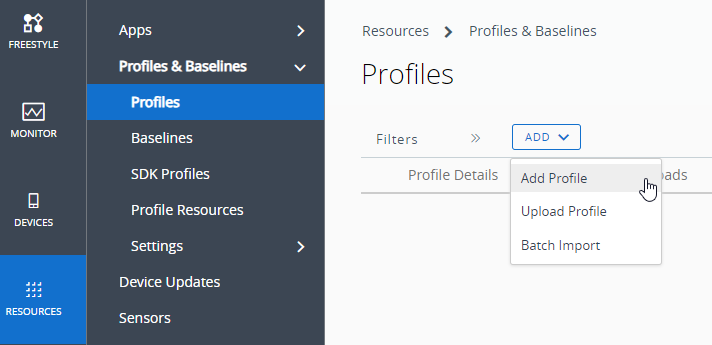
In Workspace One, navigate to Resources > Profiles & Baselines > Profiles.
-
In the content pane, click Add > Add Profile.
-
Follow the wizard pages described below.
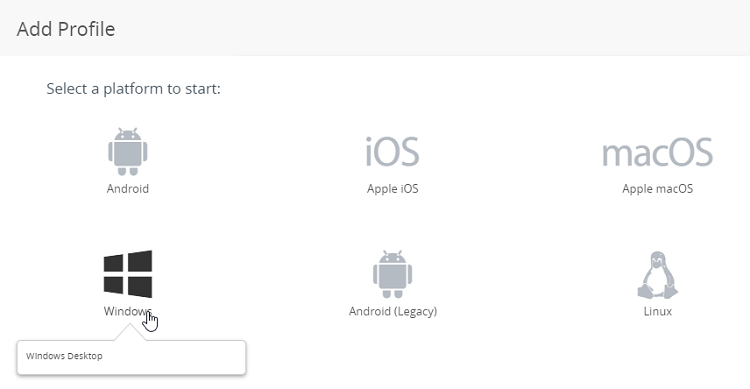
Add Profile
Click on the name of the platform running the enrollment device.
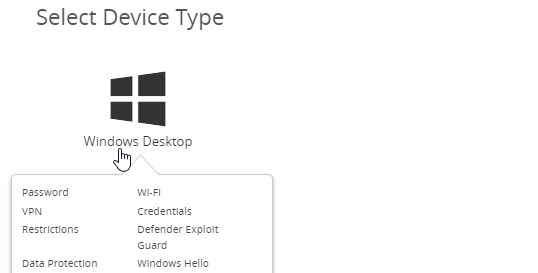
Select Device Type
Click on the type of enrolled device.
Select Context
Click on User Profile to enroll users or Device Profile to enroll devices.

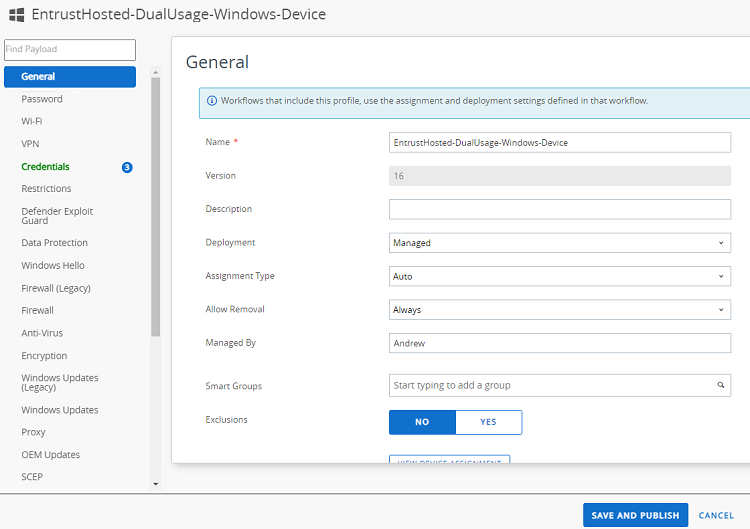
General
Click General in the sidebar menu to configure the following settings in the content pane.
| Field | Value |
|---|---|
| Name | Enter a name for the profile. |
| Smart Group | Select the smart group containing the managed users or devices. |
Credentials
Click Credentials in the sidebar menu to configure the user credentials.
| Field | Value |
|---|---|
| Credential Source | Select Defined Certificate Authority. |
| Certificate | Upload separately the certificates of the root and issuing CAs. |
| Certificate Store | Select Personal or Intermediate for profiles with the User Profile context. Select Trusted Root for profiles with the User Device context. |
Click 🞧 to create a new credential with the following settings.
| Field | Value |
|---|---|
| Credential Source | Select Defined Certificate Authority. |
| Certificate Authority | Select the CA configured in Adding a CA and a Request Template for MDM automation in VMware Workspace ONE. |
| Certificate Template | Select the request template configured in Adding a CA and a Request Template for MDM automation in VMware Workspace ONE. |
| Key Location | Specify the location for the issued certificate: Software or Hardware. |
| Certificate Store | Enter the name of the certificate store. |