Adding an identity certificate in Ivanti Neurons MDM
Add an identity certificate in Ivanti Neurons to automate MDM enrollment.
To add an identity certificate in Ivanti Neurons:
-
Log in to the Ivanti Neurons portal.
-
Select Configurations in the navigation sidebar and click Add.
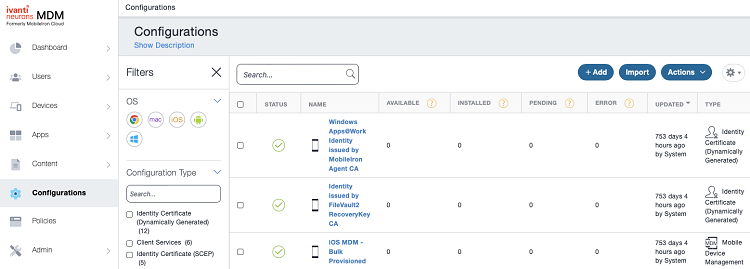
-
Click Identity certificate in the Add Configuration pane.
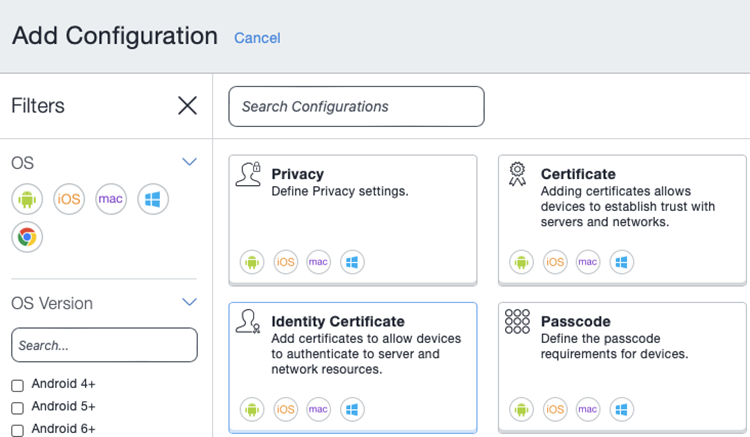
-
Enter a friendly name for the identity certificate in the Name field.
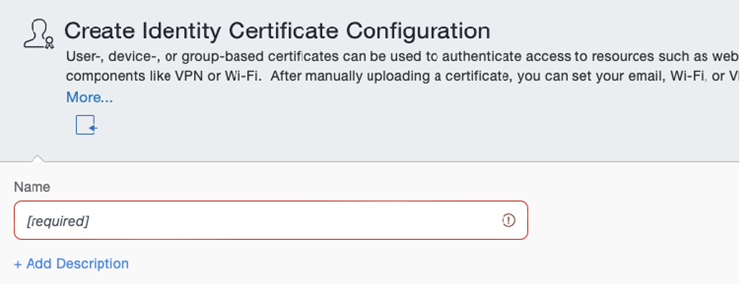
-
Select the following values under Configuration Setup.
- Certificate Distribution
- Source
- Profile ID
- Profile description
- Application description
- Subject Alternate Name Type
- Subject Alternative Name Value
- Target Certificate Store
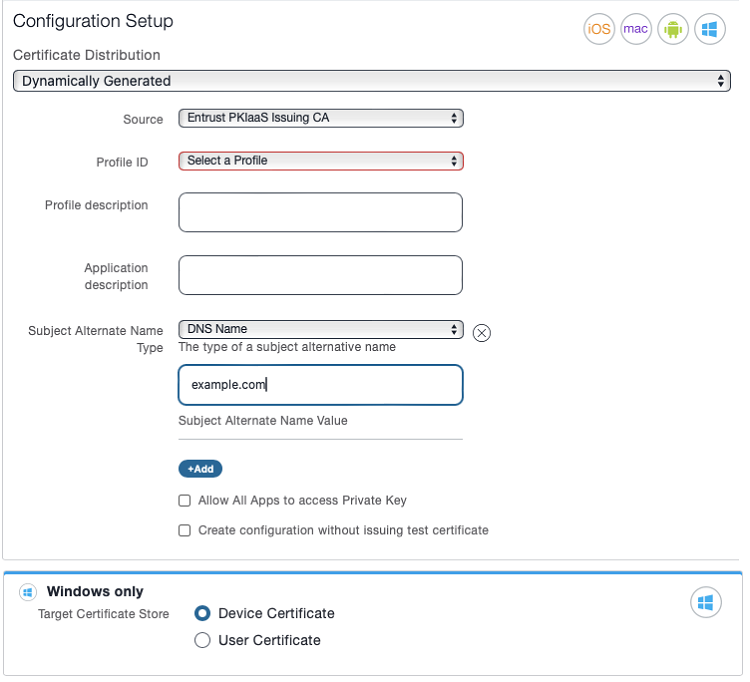
Certificate Distribution
Select Dynamically Generated.
Mandatory: Yes
Source
Select the certificate authority described in Adding a PKIaaS issuing CA to Ivanti Neurons MDM.
Mandatory: Yes
Profile ID
Select the same Profile ID value that was used to create a digital identifier in section Configuring Ivanti in PKIaaS.
Mandatory: Yes
Profile description
Enter a description of the enrollment profile.
Mandatory: No
Application description
Enter a description of the intended application for the identity certificate.
Mandatory: No
Subject Alternate Name Type
Select a format for the Subject Alternative Name field in the enrolled certificates.
Mandatory: Select None if the enrolled certificates do not require a Subject Alternative Name field.
Subject Alternative Name Value
Enter a value for the Subject Alternative Name field in the enrolled certificates.
Mandatory: When selecting a value other than None in Subject Alternate Name Type.
Target Certificate Store
When enrolling Windows devices, select the store for installing the certificates.
| Option | Certificate store |
|---|---|
| Device Certificate | The store of the local machine |
| User Certificate | The store of the current user |
Mandatory: When enrolling certificates for Windows devices.