Adding a PKIaaS issuing CA to Ivanti Neurons MDM
Add and configure a PKIaaS issuing certificate authority in Ivanti Neurons to automate MDM enrollment.
To add a PKIaaS issuing certificate authority in Ivanti Neurons:
-
Log in to the Ivanti Neurons portal.
-
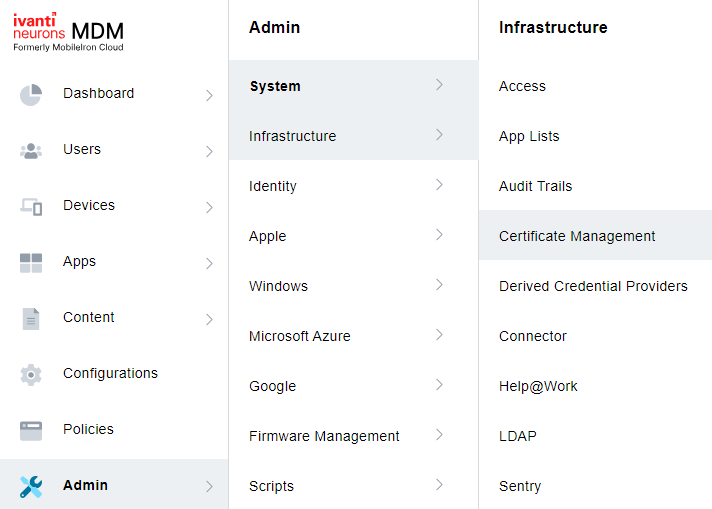
Go to Admin > Infrastructure> Certificate Management.
-
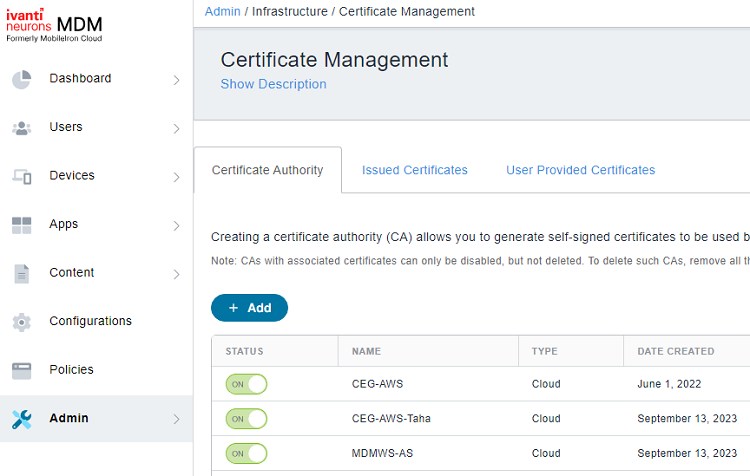
Click the Add button of the Certificate Authority tab.
-
Click Continue.

-
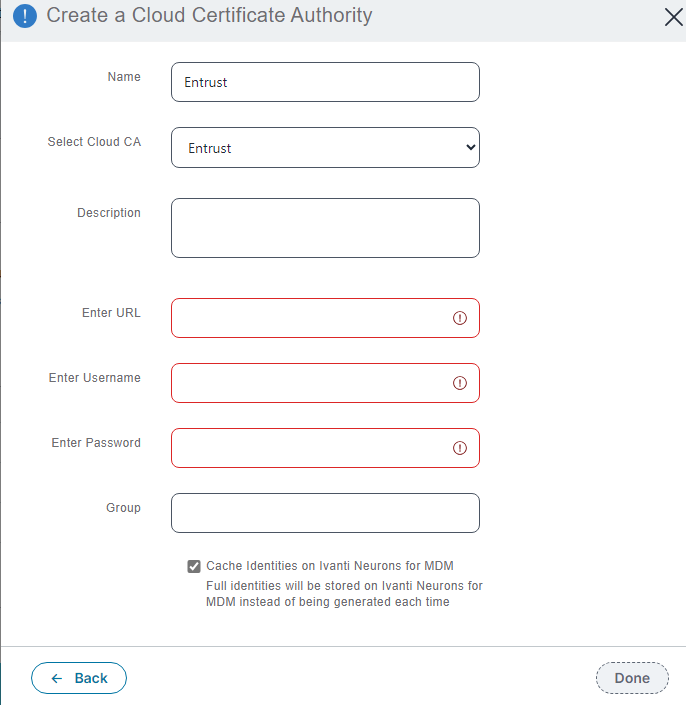
Configure the following settings.
- Name
- Select Cloud CA
- Description
- Enter URL
- Enter Username
- Enter Password
- Group
- Cache Identities on Ivanti Neurons for MDM
Name
Enter a friendly name for Entrust CA within Ivanti Neurons MDM.
Mandatory: Yes.
Select Cloud CA
Select Entrust.
Mandatory: Yes.
Description
Add an optional description for the Entrust CA.
Mandatory: Yes.
Enter URL
Paste the SCEP URL value that was obtained in section Configuring Ivanti in PKIaaS.
Mandatory: Yes.
Enter Username
Paste the User Name that was used to create a credential in section Configuring Ivanti in PKIaaS.
Enter Password
Paste the password that was obtained after creating a credential in section Configuring Ivanti in PKIaaS.
Mandatory: Yes.
Group
Skip this field, as groups are not evaluated for certificate authorities.
Mandatory: Yes.
Cache Identities on Ivanti Neurons for MDM
Keep this option enabled.
⚠ Disabling this option will result in certificates being regenerated each time they are needed.
Mandatory: Yes.