Creating Intune profiles for Windows in Azure
Create the following profiles to enroll Microsoft Windows devices with Intune.
- A root CA profile
- An issuing CA profile
- An SCEP profile
To create a Windows profile for Intune:
-
Log in to https://endpoint.microsoft.com as a user with administrative privileges.
-
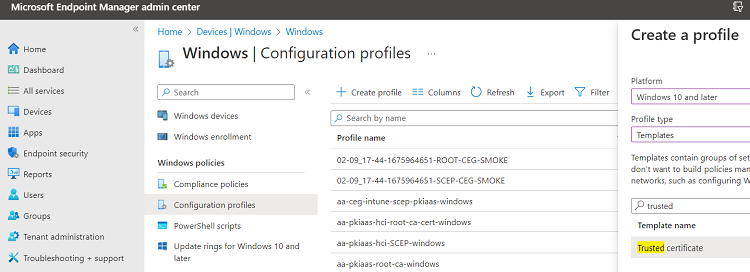
Go to Devices > Windows > Configuration profiles.
-
Click Create profile.
-
Configure the values described in the following sections.
Create a profile
In the Create a profile dialog, select the following values for each Windows profile.
| Setting | root CA profile | issuing CA profile | SCEP profile |
|---|---|---|---|
| Platform | Windows 10 and later | Windows 10 and later | Windows 10 and later |
| Profile type | Templates | Templates | Templates |
| Template name | Trusted certificate | Trusted certificate | SCEP certificate |
Basics
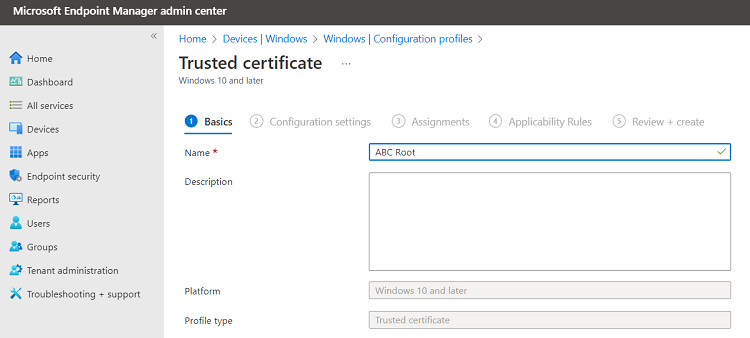
In the Name field of the Basics page, type the name of the profile – for example:
- ABC Root
- ABC Issuing
- ABC Digital Signature SCEP Cert
Optionally, add a description of the profile purpose.
Configuration settings
When creating a root or issuing CA profile for Windows, configure the following settings on the Configuration settings page.
| Setting | Root CA profile | Issuing CA profile |
|---|---|---|
| Certificate file | The root certificate authority certificate | The issuing certificate authority certificate |
| Destination store | Computer certificate store - Root | Computer certificate store - Intermediate |
⚠ See Downloading a CA certificate to download CA certificates.
When creating an SCEP profile for Windows, configure the following settings on the Configuration settings page.
| Setting | Value |
|---|---|
| Certificate type | Select User. |
| Subject name format | The syntax of the certificate subject names. This field supports the variables described in https://learn.microsoft.com/en-us/mem/intune/protect/certificates-profile-scep |
| Subject alternative name | The value of each attribute in the certificate subject alternative name. Optional. |
| Certificate validity period | The validity period of the certificates. |
| Key storage provider (KSP) | Select Enroll to Software KSP for Windows 10 Intune enrollments; select any of the listed values for Windows 11. |
| Key usage | The key usage of the enrolled certificates. |
| Key size (bits) | Select 2048 (Entrust PKIaaS does not support key sizes below 2048). |
| Hash algorithm | Select SHA-2. |
| Root certificate | Select the root CA profile. |
| Extended key usage | Select Client Authentication. |
| SCEP Server URLs | Paste one of the URLs obtained when Configuring Intune in PKIaaS. |
Assignments
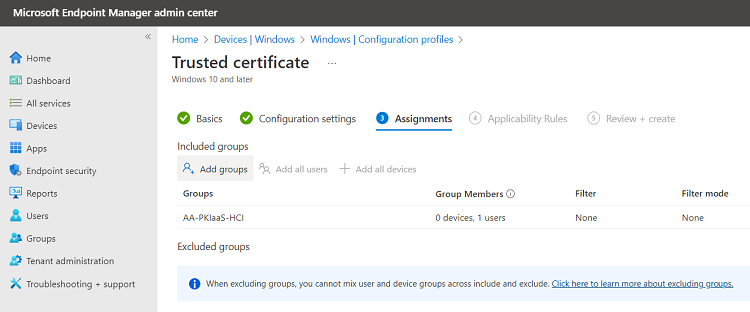
On the Assignments page, select the user group of the Intune-enrolled devices.
Applicability Rules
On the Applicability Rules page, select optional filters for the selected group - for example, the operating system of the devices.
Review and create
On the Review + create page, check the settings of the new profile and click Create to confirm the profile creation.