Configuring MDM automation with Cloud Extender
After downloading and installing IBM MaaS360 Cloud Extender, run the Cloud Extender Configuration Tool to configure MDM integration.
To configure IBM Cloud as an MDM provider:
-
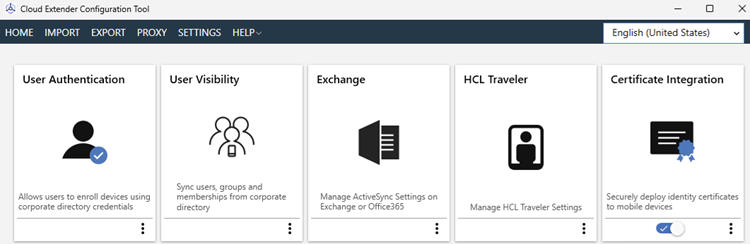
In the Cloud Extender Configuration Tool, click Certificate Integration.
-
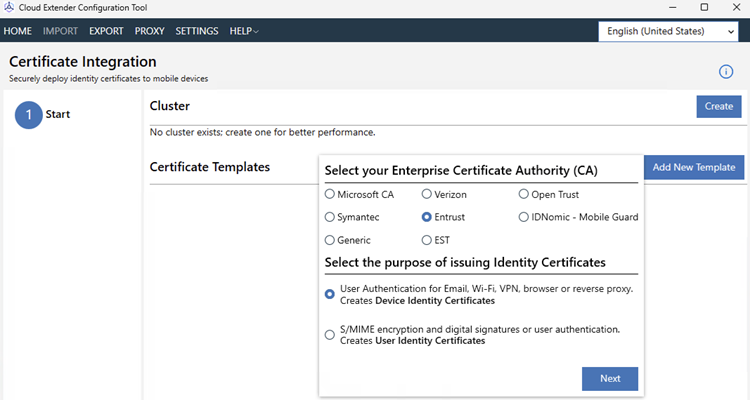
Click Add New Template to deploy the certificate template options.
-
Under Select your Enterprise Certificate Authority (CA), select “Entrust”.
-
Under Select the purpose of the issuing Identity Certificates, select “Creates Device Identity Certificate”.
-
Click Next to configure the Entrust CA settings.
-
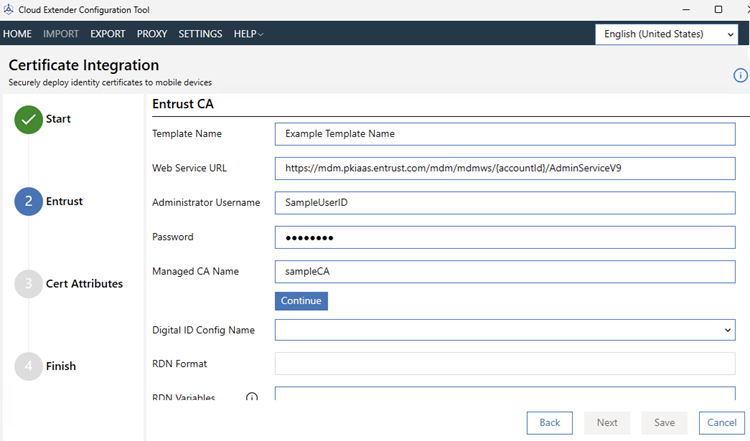
Fill in the following fields.
Field Value Template Enter a user-friendly name for this configuration Web Service URL Enter the Web Service URL value obtained in section Configuring MDM IBM MaaS360 in PKIaaS. Make sure this URL ends with “AdminServiceV9”. Administrator Username Enter the same User Name you used for creating a credential in section Configuring MDM IBM MaaS360 in PKIaaS. Password Enter the password obtained after generating a credential in section Configuring MDM IBM MaaS360 in PKIaaS. Managed CA Name Enter the same credential CA Identifier selected in section Configuring MDM IBM MaaS360 in PKIaaS. -
Click Continue to populate the Digital ID list of Digital ID configurations.
-
Select a Digital ID configured to use a PKIaaS CA with an mdmws certificate profile that supports P12.
ℹ Selecting a Digital ID will automatically populate the RDN Format and the RDN Variables fields.
-
In the RDN Format and the RDN Variables fields, replace every occurrence of
%REPLACE%with the Subject Name variables described at: https://www.ibm.com/docs/en/maas360?topic=integration-configuring-certificate-template-entrust -
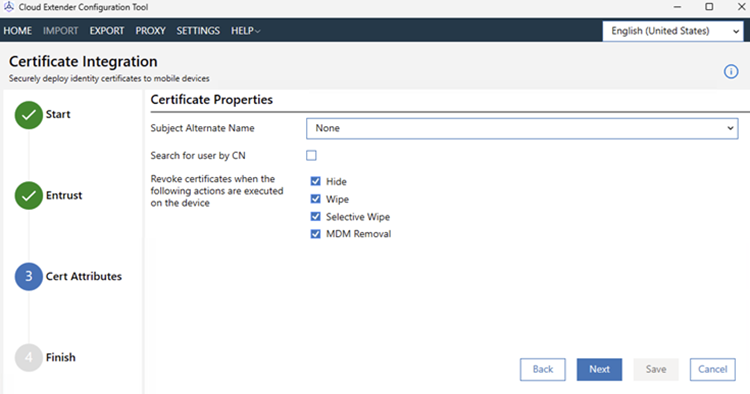
Click Next to configure the certificate properties.
-
Enable all four revocation-related checkboxes to automatically revoke certificates (recommended).
-
Click Next to configure a test certificate request.
-
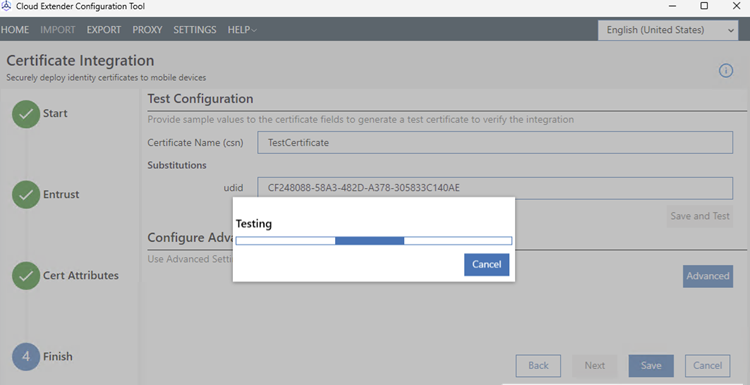
Configure the following values under Test Configuration.
Field Value Certificate Name (csn) Enter a name for the new certificate. Substitutions Enter a value for each variable configured in the RDN Format and RDN Variables fields. -
Click Save and Test and wait while PKIaaS issues the test certificate.
-
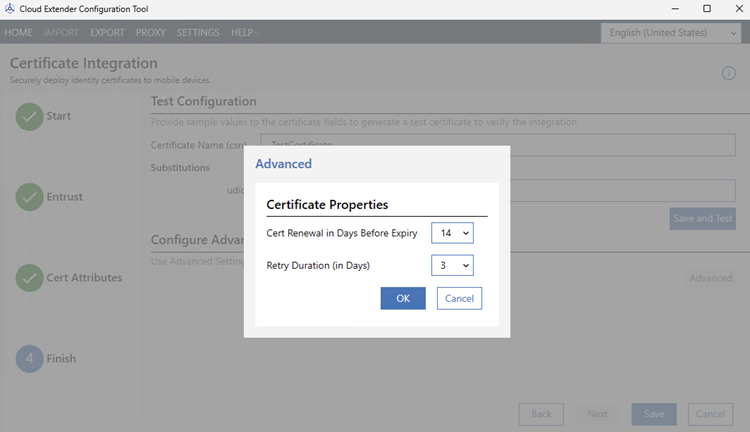
Click Advanced and configure the renewal settings.
-
Click OK to close the Advanced dialog.
-
Click Save.