Creating an Azure storage account
Select an existing Azure storage account or create a new one as explained below.
ℹ Skip this step if the storage was already created for a previous deployment.
To create an Azure storage account:
-
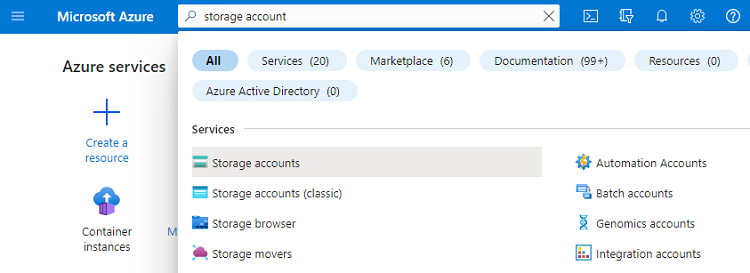
Type “storage accounts” in the Azure search bar.
-
Select Storage accounts in the search results.
-
Click + Create on the Storage accounts page.
-
Configure the following settings on the Create a storage account page.
-
Click Review to display the configured settings.
-
Click Create to create the storage account.
Subscription
Select your Azure user subscription.
Resource group
Select an existing resource group or create a new one.
⚠ All the resources created to deploy an agent in Azure must share the same resource group.
Storage account name
Enter a name for the new storage account.
Region
Select a region for the new storage account.
⚠ All the resources created in Azure must share the same region.