Creating a WSTEP service account
Create a WSTEP service account for the WSTEP agent and WSTEP server to authenticate all incoming requests from WSTEP clients.
ℹ Each root domain in the Active Directory forest requires a separate WSTEP service account, as each Active Directory forest must be configured separately.
To create a WSTEP service account:
-
Log in to a domain controller of the Active Directory forest’s root domain as a user who is a member of both the Domain Admins and Enterprise Admins groups.
⚠ The service account created for the agent must have read permissions on certificate templates, user objects, and computer objects in LDAP.
-
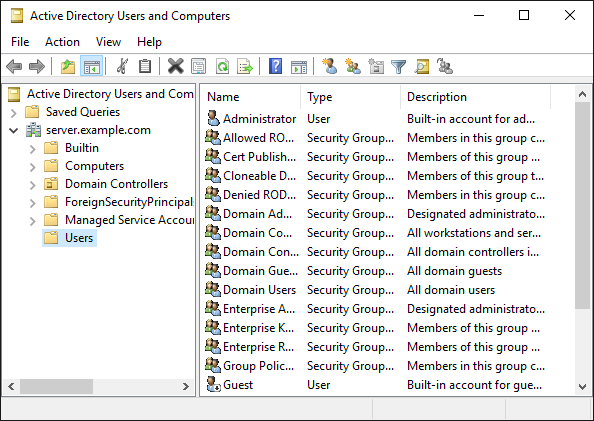
Select Start > Windows Administrative Tools > Active Directory Users and Computers to open the Active Directory Users and Computers dialog box.
-
Right-click the folder where you want to create the new account.
-
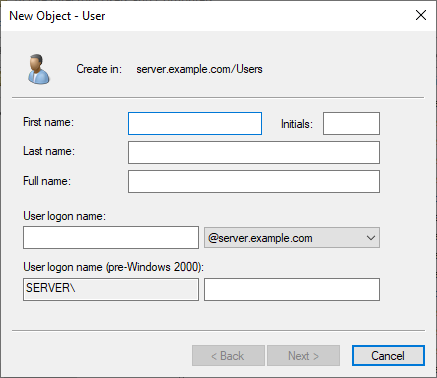
Select New > User to open the New Object – User dialog box.
-
Enter the First name, Last name, and Full name for the new user account.
-
Enter a Windows User logon name for the user account. Optionally, enter a User logon name (pre-Windows 2000) for pre-Windows 2000 computers.
-
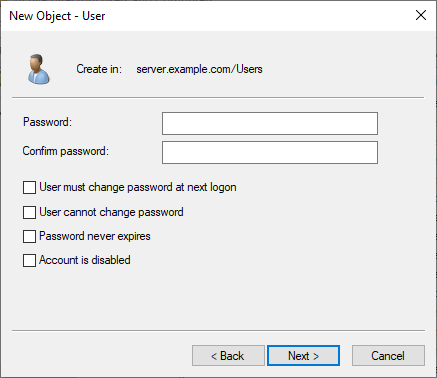
Click Next to display the password options.
-
Enter a Password for the user account.
-
Enter the password again in the Confirm password field.
-
Deselect User must change password at next logon.
-
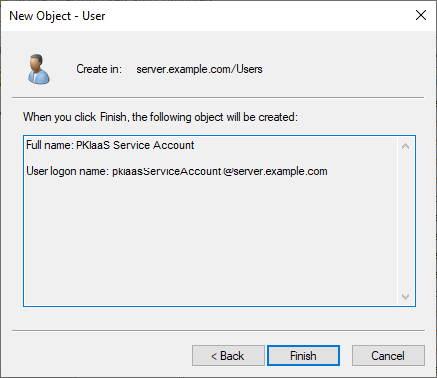
Click Next to display the confirmation dialog.
-
Record the user logon name of the account. You will use this logon name later to add a Service Principal Name (SPN) mapping for Kerberos.
-
Click Finish.
-
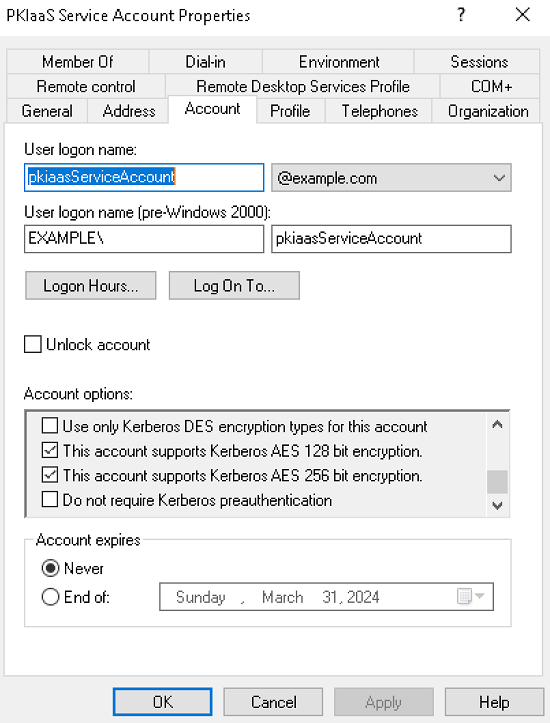
Double-click the account you just created to display the properties dialog box.
-
In the Account tab, check the following boxes under Account options.
- This account supports Kerberos AES 128 bit encryption
- This account supports Kerberos AES 256 bit encryption
-
Click OK.