Enabling autoenrollment for devices
Configure the WSTEP Group Policy Object to enable autoenrollment for devices.
To enable autoenrollment for devices:
-
In the navigation tree of the new WSTEP Group Policy Object, expand Computer Configuration > Policies > Windows Settings > Security Settings > Public Key Policies.
-
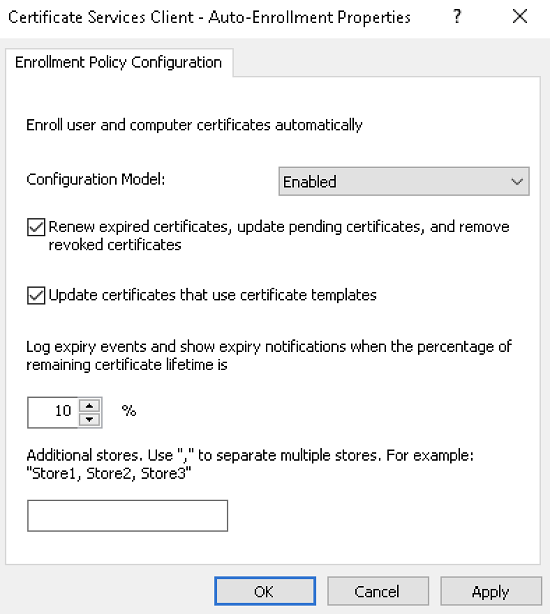
In the content pane, right-click Certificate Services Client Auto Enrollment and select Properties to display the Certificate Services Client Auto-Enrollment Properties dialog box.
-
Select Enabled in the Configuration Model drop-down list.
-
Check the following boxes:
- Renew expired certificates, update pending certificates, and remove revoked certificates
- Update certificates that use certificate templates
-
Optionally, change the percentage under Log expiry events and show expiry notifications when the percentage of remaining certificate lifetime is.
-
Click OK.