Configuring Jamf in PKIaaS
Configure a PKIaaS workflow to process MDM (Mobile Device Management) Jamf enrollment requests.
To configure an MDM Jamf workflow in PKIaaS:
-
Follow the steps described in Accessing your partitions to log into the PKIaaS interface as a user with any of the following roles:
-
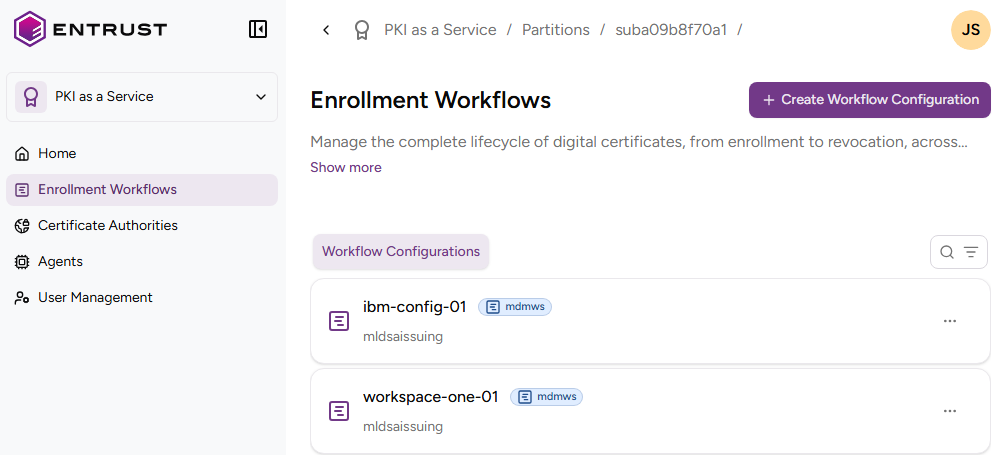
Click Enrollment Workflows in the sidebar.
-
Click Create Workflow Configuration.
-
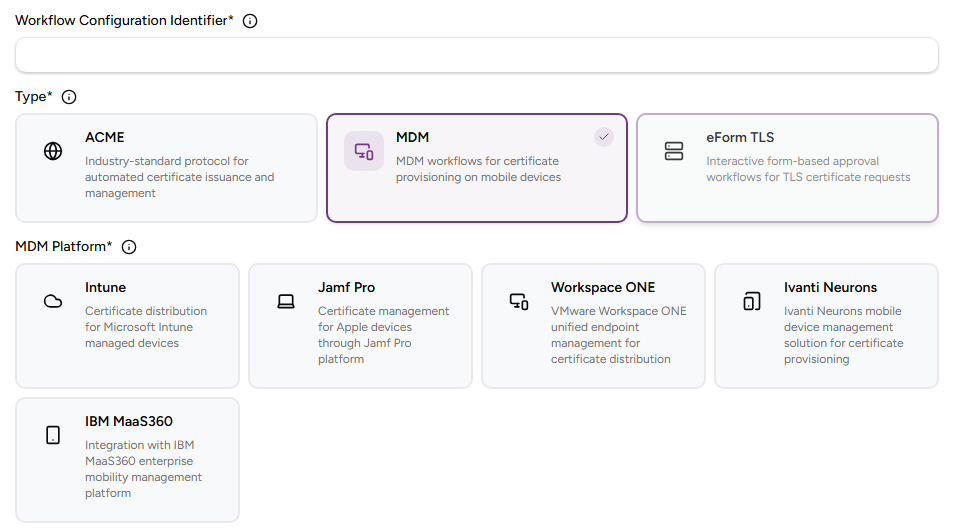
Click MDM and then Jamf Pro.
-
Configure following settings.
Field Value Workflow Configuration Identifier Enter a unique identifier for the new configuration in your PKI. This identifier must contain 2–18 characters and can only include lowercase letters, numbers, hyphens (’-’), and underscores (’_’). Description Enter an optional description of the protocol purpose. CA Identifier Select an issuing subordinate authority with profiles of the mdmws group. -
Click Create.
-
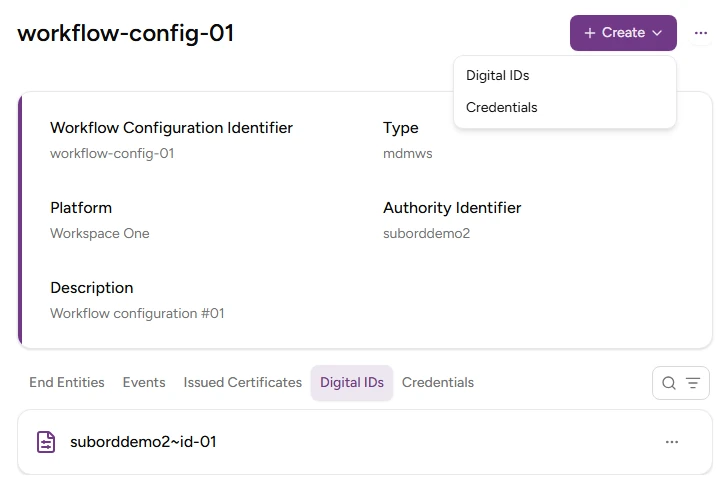
In the confirmation window, select Create > Digital IDs.
-
Configure the following values.
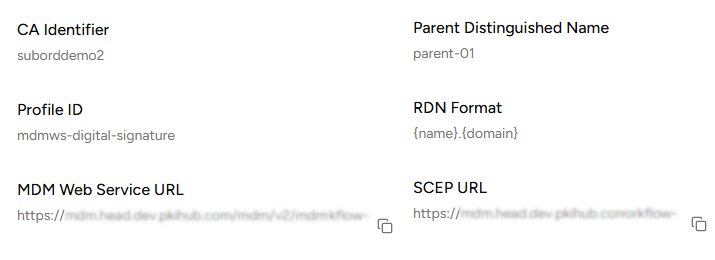
Field Value Digital ID Enter a unique name of the new digital identifier. Parent DN Enter the parent Distinguished Name (DN) for building the RDN of a certificate. This value is appended to the end of the Subject DN after the RDN Format variables have been processed. RDN Format Enter the Relative Distinguished Name (RDN) format to build certificate Subject Names. See Jamf RDN Format for considerations on this value. CA Identifier Select an issuing subordinate authority with profiles of the mdmws group. Profile ID Select the mdmws profile to process the enrollment requests. -
Click Create.
-
Copy the URLs under the MDM Web Service URL and SCEP URL fields of the confirmation dialog.
-
Click Enrollment Workflows in the sidebar
-
Click the name of the new enrollment protocol in the protocols list.
-
Select Create > Credentials
-
Enter a username with the following requirements:
- 2-18 characters long.
- Only includes lowercase letters, numbers, hyphens (’-’), and underscores (’_’).
-
Click Create.
-
Copy the Password value displayed in the confirmation dialog.
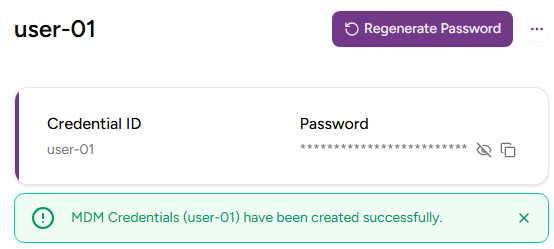
⚠ As stated in the confirmation dialog before leaving this page, Entrust PKIaaS will not display the credential password again. However, you can generate a new one with the Regenerate Password button.