Configuring ACME in PKIaaS
Create a PKIaaS enrollment workflow configuration for ACME enrollment.
To create an ACME configuration in PKIaaS:
-
Follow the steps described in Accessing your partitions to log into the PKIaaS interface as a user with any of the following roles:
-
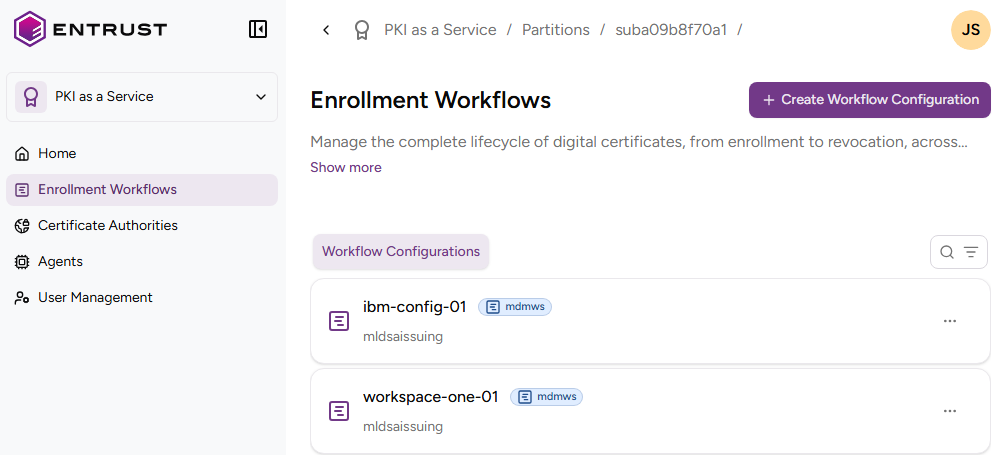
Click Enrollment Workflows in the sidebar.
-
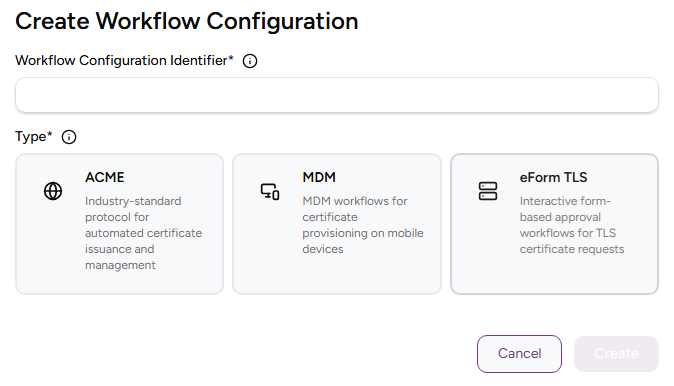
Click Create Workflow Configuration.
-
Click ACME under Type.
-
Configure following settings.
Field Value Workflow Configuration Identifier Enter a unique identifier for the new configuration in your PKI. This identifier must contain 2–18 characters and can only include lowercase letters, numbers, hyphens (’-’), and underscores (’_’). Description Enter an optional description of the enrollment workflow purpose. Authority Identifier Select an issuing subordinate authority with profiles of the privatessl group. Certificate Profile Select a privatessl profile of the selected CA to enroll the certificates. -
Click Create.
-
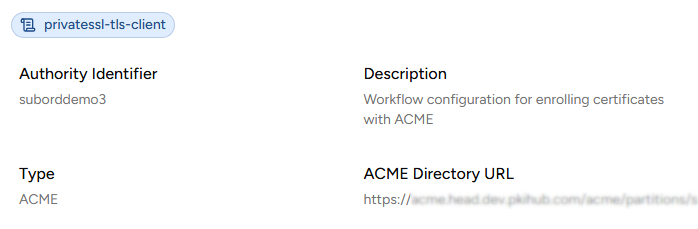
In the confirmation dialog, copy the URL under the ACME Directory URL section.
-
Click Create EAB Key and enter a friendly name with the following requirements:
- 2-18 characters long
- Only includes lowercase letters, numbers, hyphens (’-’), and underscores (’_’).
-
Click Create.
-
Copy the EAB Identifier and EAB HMAC Key values displayed in the confirmation dialog.
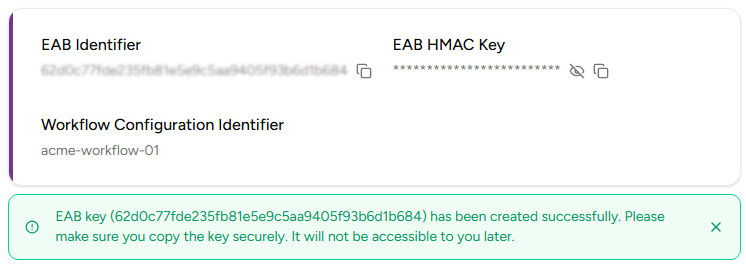
⚠ As stated in the confirmation dialog before leaving this page, Entrust PKIaaS will not display the EAB HMAC Key again.