Adding Active Directory nodes
Add the Windows Active Directory nodes for which to enroll certificates.
To add an Active Directory node:
-
Follow the steps described in Accessing your partitions to log into the PKIaaS interface as a user with any of the following roles:
-
Click Certificate Authorities in the sidebar and select the Enrollment Protocols (Legacy) tab.
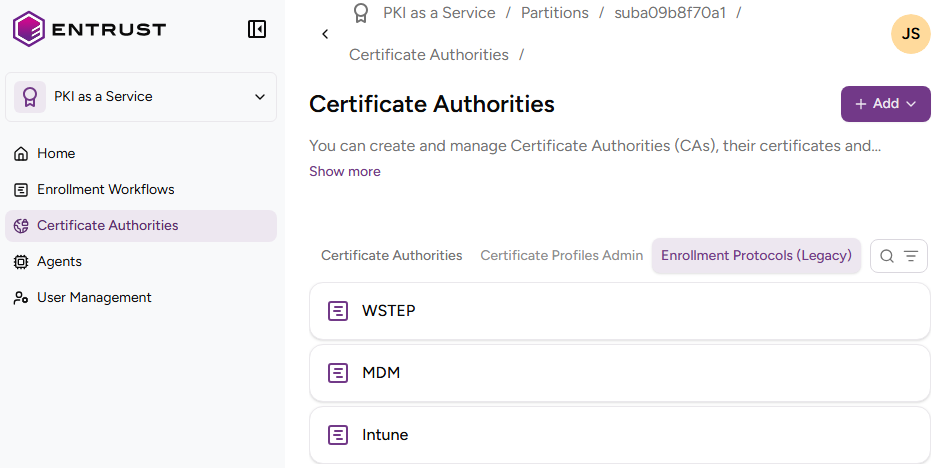
ℹ Future releases will move all functionalities on this legacy tab to the Enrollment Workflows branch of the navigation tree.
-
Click WSTEP in the protocols list.
-
Select Create > Active Directory.
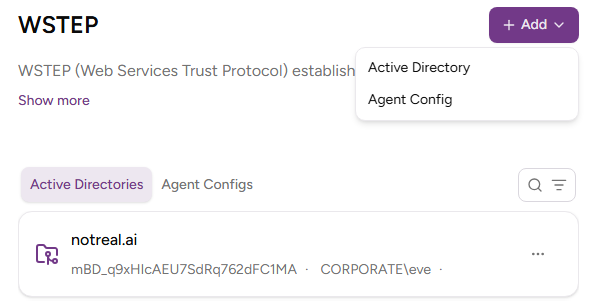
-
Configure the following values.
-
Click Add.
-
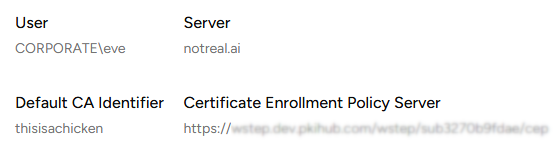
In the details of the new Active Directory, copy the value under Certificate Enrollment Policy Server. You will need this value when Enabling WSTEP for users.
Server
Enter an identifier for the Active Directory.
DNS Resolver
Enter the DNS resolver that the WSTEP agent will use to resolve domain names. Enter the DNS resolver in the following syntax:
<ip>[:<port>]
Where:
<ip>indicates the IP address of the DNS server.<port>indicates the port of the DNS service (defaults to 53).
User
Enter the name of a user with administrative permissions in the Windows domain.
Password
Enter and confirm the password of the selected user.
LDAP Certificate Chain
Select a file containing the certificate chain of the Active Directory server.
CA Identifier
Select the issuing subordinate CA that will process the WSTEP enrollment requests. This list only includes certificate authorities with at least one wstep profile. You can either:
- Create a new CA with this group, as explained in Creating an issuing subordinate authority.
- Add this group to an existing CA, as explained in Selecting CA profiles.