Issuing a certificate from CSR
See below for the certificate authority to process a PKCS #10 Certificate Signing Request (CSR) for a locally generated key pair.
To issue a certificate for server-generated keys:
-
Generate a key pair and a CSR on your local machine using your preferred tools.
-
Follow the steps described in Accessing your partitions to log into the PKIaaS interface as a user with any of these roles:
-
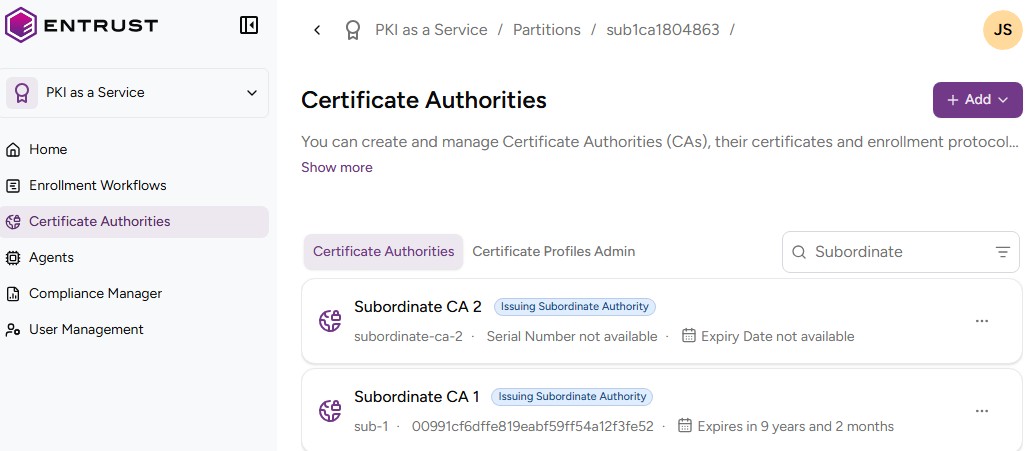
Click Certificate Authorities in the sidebar.
-
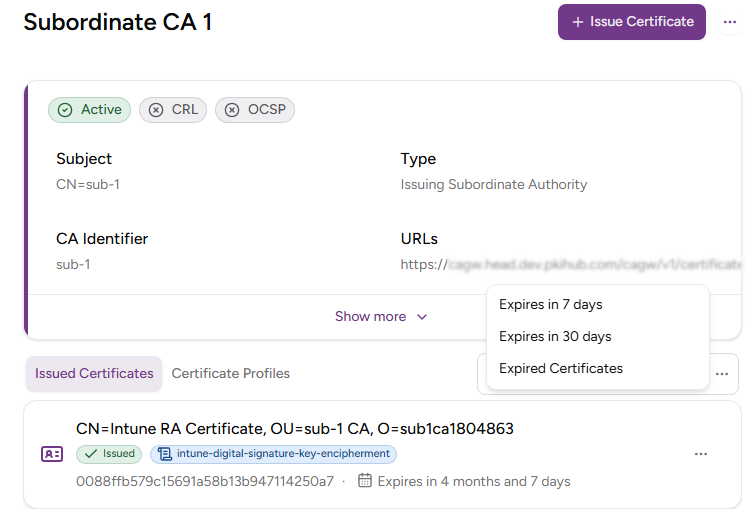
In the Certificate Authorities tab, click the name of the certificate authority that will issue the certificates.
-
Click Issue Certificate.
-
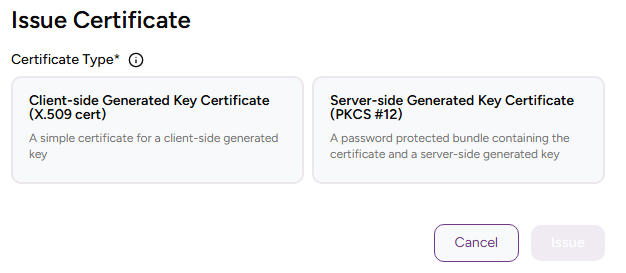
Select Client-side Generated Key Certificate (X.509 cert).
-
Complete the following values.
Certificate profile
Select one of the Subscriber certificate profiles for the certificate authority to issue this certificate.
ℹ This list only includes the certificate profiles selected in the issuing subordinate authority. See Creating an issuing subordinate authority for how to select profiles on CA creation and Selecting CA profiles for how to add profiles to an existing CA.
Certificate Signing Request
Paste the encoded text of a Certificate Signing Request (CSR) you have locally generated for a key pair.
Use Subject from CSR
Check this box if you want the issued certificate to have the same Subject’s Distinguished Name (DN) as the CSR pasted in the Certificate Signing Request field.
ℹ When you check this box, the Subject field remains read‑only and shows the DN set in the CSR.
Subject
Enter a value for each RFC5280 attribute in the certificate subject’s Distinguished Name (DN).
| Field | Mandatory |
|---|---|
| Common Name | ✔ |
| Organization | ❌ |
| Organizational Unit | ❌ |
| State/Province | ❌ |
| Locality Name | ❌ |
| Domain Component | ❌ |
| Country | ❌ |
Alternatively, you can:
- Toggle the Advanced Subject switch
- Type a Distinguished Name (DN) including additional attributes.
For example, when the certificate subject represents a corporate employee:
CN=John Doe, OU=Sales, O=Example Corp, L=San Francisco, ST=California, C=US
When the certificate subject represents a corporate domain:
CN=server1.example.com, CN=server2.example.com, OU=IT, O=Example Corp, L=Chicago, ST=Illinois, C=US
Subject Alternative Names
Add optional Subject Alternative Names (SANs) for the certificate subject. Typically, SANs extend the domain names or IP addresses set in the Subject field of a TLS certificate. For example:
| SAN type | SAN example value |
|---|---|
| DNS Name | example.com |
| DNS Name | www.example.com |
| DNS Name | example.net |
| DNS Name | mail.example.com |
| DNS Name | support.example.com |
| DNS Name | example2.com |
| IPv4 Address | 93.184.216.34 |
| IPv6 Address | 2606:2800:220:1:248:1893:25c8:1946 |