Establishing trust of the LDAPS TLS chain
Before generating the LDAPS TLS certificates, configure the Active Directory Forest to trust the certificate chain. Otherwise, there is a risk of breaking the LDAP communications between the various domain controllers. As explained below, the recommended method to configure the LDAPS certificate chain trust is to create a GPO (Group Policy Object) linked to all domains in the Active Directory Forest.
- Creating a Group Policy Object for the LDAPS TLS certificate chain
- Importing the LDAPS TLS certificate chain into the Group Policy Object
- Linking the TLS LDAPS Group Policy Object to all domains
Creating a Group Policy Object for the LDAPS TLS certificate chain
The recommended method to configure a certificate chain trust is to create a Group Policy Object (GPO) linked to all domains in the Active Directory forest.
To create a Group Policy Object:
-
Log in to the root Active Directory of the forest as an Active Directory administrator.
-
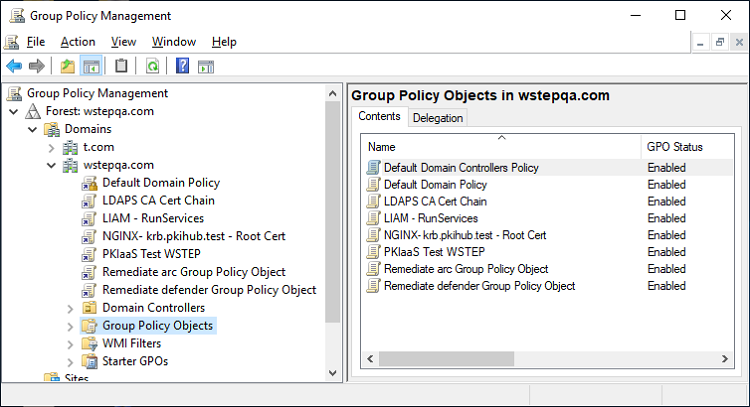
Select Start > Windows Administrative Tools > Group Policy Management to open the Group Policy Management dialog.
-
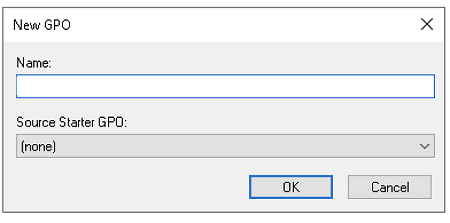
Under the root domain, right-click the Group Policy Objects folder and select New to display the New GPO dialog.
-
Provide a new Name for the GPO and click OK.
Importing the LDAPS TLS certificate chain into the Group Policy Object
Import the LDAPS TLS certificate chain into the GPO previously created in Creating a Group Policy Object for the LDAPS TLS certificate chain.
ℹ See Downloading the certificate chain for how to download the required certificates.
To import the certificate chain into the GPO:
-
Log in to the root Active Directory of the forest as an Active Directory administrator.
-
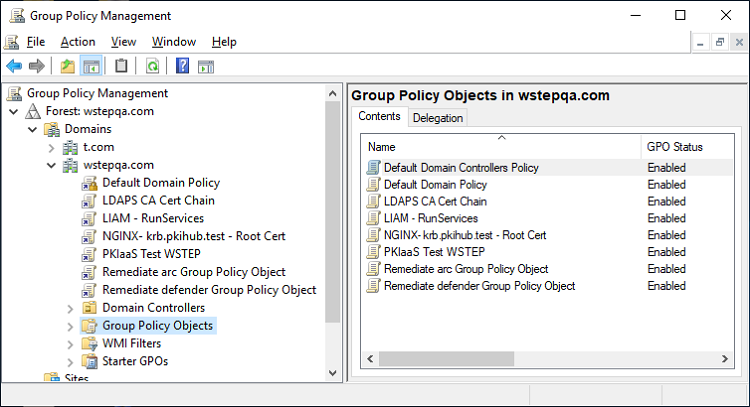
Select Start > Windows Administrative Tools > Group Policy Management to open the Group Policy Management dialog.
-
Right-click the Group Policy Object.
-
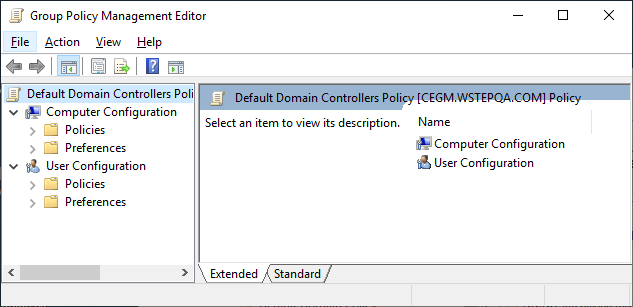
Select Edit to display the Group Policy Management Editor.
-
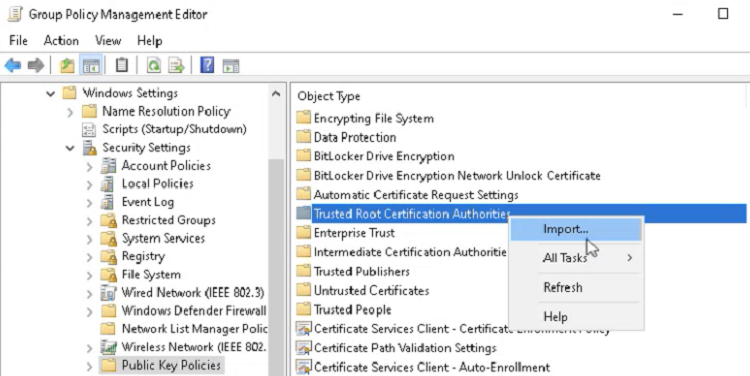
Navigate to Computer Configuration > Policies > Windows Settings > Security Settings > Public Key Policies.
-
Right-click Trusted Root Certificate Authorities and select Import.
-
In the Certificate Import Wizard, click Next and select the root CA certificate file to import.
-
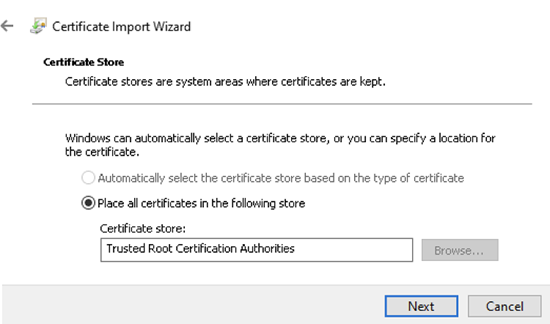
Click Next to reveal the Certificate Store settings.
-
Verify that the selected certificate store is Trusted Root Certification Authorities.
-
Click Next to display the Completing the Certificate Import Wizard.
-
Click Finish to return to the Group Policy Management dialog.
-
In the Group Policy Management dialog, navigate to Computer Configuration > Policies > Windows Settings > Security Settings > Public Key Policies.
-
Right-click Intermediate Certificate Authorities and select Import to display the Certificate Import Wizard.
-
Click Next and select the issuing CA certificate file to import.
-
Click Next to reveal the Certificate Store settings.
-
Verify that the selected certificate store is Trusted Root Certification Authorities.
-
Click Finish.
-
Select File > Exit to close the Group Policy Management Editor.
Linking the TLS LDAPS Group Policy Object to all domains
Repeat the following procedure in each domain of the Active Directory forest to link the Group Policy Object created for the LDAPS TLS certificate chain.
To link a Group Policy Object with a domain:
-
Log in to the root Active Directory of the forest as an Active Directory administrator.
-
Select Start > Windows Administrative Tools > Group Policy Management to open the Group Policy Management dialog.
-
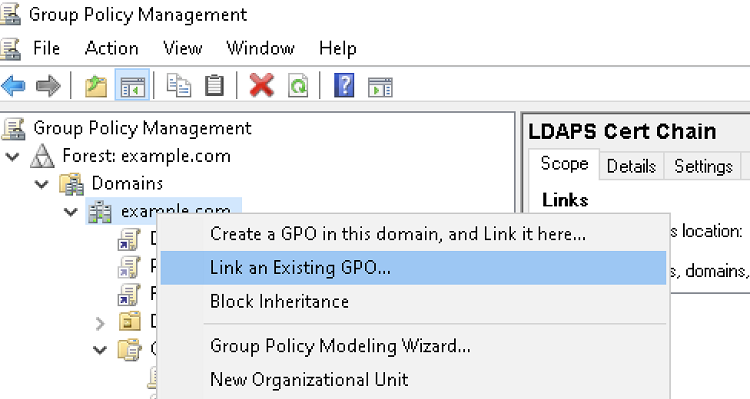
Right-click the domain name and select Link an existing GPO… to display the Select GPO dialog.
-
Select the Group Policy Object.
-
Click OK.